Cards are everywhere once you start looking. Product listings and news feeds use them, and so do the metric tiles on a dashboard. Each one is a self-contained rectangular container that groups the content and actions for a single topic, usually an image, a title, a short description and one action. Because every card stands alone, it can be scanned and compared on its own and rearranged without touching its neighbors.
The group defines the pattern more than the single card does. Pennsylvania’s Keystone Design System specifies that a card must always appear as part of a group, never by itself.
What Is a Card Layout?
Nielsen Norman Group describes a card as a container for a few short, related pieces of information, shaped roughly like a playing card and meant as a short link to a larger concept. Cards usually end up in a grid or a feed, and sometimes a plain list.
That click-through role is why cards suit mixed collections. In user interface design, one topic per card keeps a page of unrelated items scannable.
Not every source reads the pattern the same way. Nielsen Norman Group and UC Berkeley’s accessibility guidance treat the card as a snapshot that sends users to a fuller page. Appian’s SAIL design system goes broader and treats the card layout as a container for any arrangement of layouts and components, linked only when needed.
This article follows the first reading. The second matters for dashboards, where Appian groups each value and chart pair inside a card and nothing opens.
Tiles get mixed up with cards, but they’re simpler, with one or two elements and a single action (UC Berkeley accessibility guidance).
News sites show the pattern at scale. UXPin points to the BBC homepage, where each article sits in its own media card.
What Parts Does a Card Contain?
Material Design’s anatomy runs to container, headline, subhead, supporting text, image and buttons, and few cards use all six.
The container is the bounded surface that separates the card from the page. Media can be an image, an icon or a video, and Pennsylvania’s Keystone Design System offers both media cards and icon cards. The headline names the one topic the card covers.
Metadata is small text pushed to the bottom of the card (UK Department for Education design system), or a category badge capped at 20 characters (Government of Canada design system). Supporting text is the short description. Last comes the action, a button or a link.
Where these parts sit sets the visual hierarchy inside the card. California’s courts design system lets the image sit on top, left or right of the text.
On actions, the European Commission component library says the main one, ideally the only one, takes the user to the content the card represents.
Keystone adds a grouping rule too. Every card in a group uses the same type, so icon cards and media cards never share a row.
Grid, List, Masonry and Carousel Arrangements
Cards can sit in a grid of uniform cards, a masonry of variable-height cards, a single-column list or a horizontal carousel. The content decides which one fits.
Grid arrangement

The European Commission component library limits a row to 3 or 4 cards. The tallest card sets the height for every card in the group (Keystone Design System). Cards read left to right, then stack vertically in the same order when horizontal space runs out.
The grid is the default. It suits products and articles, and feature sections too, wherever every item carries the same parts.
Masonry arrangement
Pinterest was the first major website to use the masonry layout, according to SitePoint, which is why it is also called the Pinterest style layout.
Columns keep equal width while each item flows in at its own height, so fixed rows disappear. Native CSS support is new, and for the JavaScript and CSS approaches that came before it, see these CSS masonry techniques.
WebKit’s release notes say Safari 26.4 adds support for display: grid-lanes, which makes Safari the first browser to ship native masonry in a stable release. Chrome and Edge 140 hide the syntax behind a flag (Dr. Web, 2026).
Two 2026 write-ups quote caniuse with different shares of global support, roughly 10.55 percent (The Plus Addons) and under 7 percent (BuildMVPFast). Neither number supports shipping it as the only layer.
Start with a standard responsive grid and wrap the masonry rule in an @supports test. Browsers that don’t support it just keep row-aligned cards.
Masonry also has a failure mode that grids lack. Strict packing can move items away from their DOM neighbors (pravinkumar.co), and the Leanpub book CSS Grid Lanes flags the effect on keyboard and screen reader order.
List and carousel arrangements
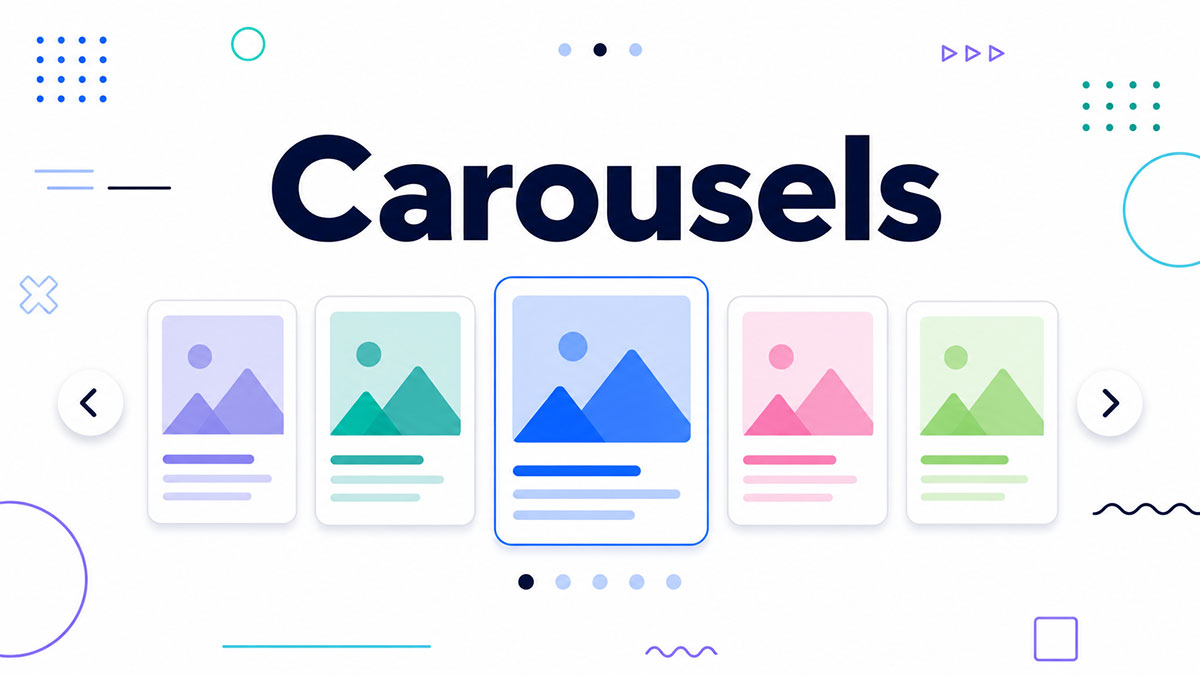
A list stacks cards in a single column, while a carousel strings them out in a row.
UXPin describes list cards for playlists, contacts and tasks, where each row is one item with its own action. A carousel UI shows only a few cards at once, so the rest stay out of sight.
Carousels work for sequences. They’re a poor fit when people need to compare items.
Card Styling: Radius, Elevation, Padding and Aspect Ratio

Corner radius, elevation, padding and image aspect ratio do most of the styling work. Material Design 3 sets the default card corner radius at 12dp, per the M3 specs as documented in FlexColorScheme.
| Property | Material Design | Appian SAIL |
|---|---|---|
| Container styles | Elevated, filled, outlined | Border on by default |
| Elevation at rest | 1dp elevated, 0dp filled and outlined | Shadow off by default |
| Corner radius | 12dp | Shape parameter |
Material 3 documentation for Android ranks the container styles by how far they separate from the background. Elevated cards stand out more than filled cards, and less than outlined cards.
A box shadow reproduces elevation in CSS, and the options are laid out in this guide to CSS shadow effects.
Padding should stay the same in every card, with enough white space between cards. Dubai’s design system warns that cards placed without spacing create visual clutter.
Image aspect ratio works the same way. Fix one ratio for every image in the group. FW Gallery’s documentation notes that a masonry layout looks identical to a regular grid when all images share one ratio, so mixed ratios pay off only when variable heights are the goal.
Stick to one container style per group, since Boston Scientific’s card guidelines say inconsistent styling across cards in the same layout makes the information harder to scan.
How to Build a Card Layout in CSS
A CSS Grid container that fills columns with repeat(auto-fit, minmax()) does most of the work, and each card then becomes a flex column. Grid places the cards, and flexbox arranges what sits inside each one.
MDN marks grid-template-columns as Baseline widely available.
- Write one article element per card, each with an image, a heading, a short paragraph and a link, inside a single wrapper.
- Set the wrapper to display: grid with grid-template-columns: repeat(auto-fit, minmax(240px, 1fr)) and a gap of 1rem.
- Set each card to display: flex with flex-direction: column, and give the body flex: 1 so the action sits at the bottom edge.
- Add the style values: border or shadow, border-radius and padding.
- Test with real headlines and images, not placeholders (Design Shack).
Equal heights come free. Grid rows stretch their items by default, so every card in a row takes the height of the tallest one.
Auto-fit collapses empty columns when a row has few cards, so 2 cards in a 4-column space stretch wide. Switch to auto-fill to keep the column width. Flexbox wrap has its own problem: fixed flex-basis values need media queries to change the column count, and with flex-grow the last row stretches wider than the rows above it.
Auto-fit with minmax changes the column count with no media query at all. Ready-made markup for the card itself is collected in these CSS cards.
How Card Layouts Respond to Screen Size
The page changes the number of columns, and separately each card can change its own inner layout. Media queries handle the first, and container queries are the tool for the second.
Column count at breakpoints
Boston Scientific’s card group and Pennsylvania’s Keystone Design System agree on the step-down. Wide screens get 3 or 4 columns, which drops to 2 on small screens and to a single column on extra small ones.
Start from the single-column case and add columns as width grows. That is mobile-first design applied to a card group.
Fixed steps like these tie the column count to the viewport, which is the job of media queries.
Media queries or container queries
| Attribute | Media queries | Container queries |
|---|---|---|
| Measures | Viewport width | Parent container width |
| Scope | Whole page grid | One card or component |
| Setup | None | container-type: inline-size on a parent |
| Card in a narrow sidebar | Keeps the desktop layout | Adapts to the narrow width |
The sidebar row is the practical argument. Steve Kinney’s Tailwind course shows a stat grid dropped into a narrow sidebar, and under media queries it still renders the desktop layout.
MDN dates container size queries to Baseline 2023, working across the latest browsers since February 2023. web.dev’s container query card goes from one column to two as its container widens, and its heading size scales with the container’s width through container query units.
One catch: container queries style the descendants of a container, not the container itself (MDN). Put container-type on a wrapper around the card, then query that wrapper to change the card’s inner layout.
Browser London’s split works well in practice. Container queries handle the component, and viewport media queries handle page layout and global typography.
How to Make a Card Layout Accessible
Accessibility mostly comes down to a real heading on each card, one clearly named link, a reading order that matches the visual order, and contrast and target sizes that meet WCAG 2.2 AA.
Heading structure and reading order
The New York State design system renders the card heading as a real heading element, so every card appears in the page outline and reaches screen reader heading navigation. NSW’s DCJ design system places card groups under a section heading and applies an ARIA list role to the group.
In the source, Nomensa writes the heading first in the HTML and rearranges the visual order with flexbox. Queensland Health’s design system requires the element order inside a card to make sense when a screen reader reads it.
Keystone documents Tab moving forward through the cards and their interactive elements in a logical order.
Clickable cards
Sources disagree on the clickable area.
UC Berkeley’s guidance says not to wrap a whole card in an anchor, and points to W3C’s block link card pattern. Adrian Roselli and Nomensa describe the stretched link instead, where a pseudo-element on the heading link covers the card.
Making the whole card clickable gives the largest target, which answers Berkeley’s question about users with a tremor or on mobile. The cost is one action per card (Berkeley), and the overlay blocks text selection (Roselli, Nomensa).
Linking only the heading leaves room for several actions, as in Queensland’s multi-action cards, though the target is smaller.
If a card has exactly one destination, the whole-card link is the better pick. A heading link makes more sense once it has several.
Contrast, focus and target size
Cards add a contrast problem that plain text lacks, because text sits on a tinted container, a photo or a shadowed surface. Check every pair against these color contrast thresholds.
Body text needs at least 4.5:1 against the card background (WCAG SC 1.4.3), and large text needs at least 3:1 under the same criterion. Controls and their states also need at least 3:1 against adjacent colors (WCAG SC 1.4.11). Pointer targets must be at least 24 by 24 CSS pixels, which is new in WCAG 2.2 (SC 2.5.8).
All four values come from the W3C success criteria.
Smaller targets still pass when a 24 CSS pixel circle centered on each one does not overlap another target or that target’s circle. A tight row of icon buttons in a card footer needs both size and spacing checked.
Card Layout vs List vs Table: Which Fits the Content?

Cards suit browsing visual items. Lists work better for one-line items scanned in order, and tables win when records need comparing across shared attributes. Setproduct’s 2026 data table guide draws the same line, with tables for comparing and cards for when visual content matters more than the comparison.
| Pattern | Best for | Weak at |
|---|---|---|
| Card layout | Browsing mixed, visual items | Comparing options |
| List | One-line items scanned in order | Rich media |
| Table | Comparing records across shared attributes | Small screens |
Queensland’s design system, citing Nielsen Norman Group research (Laubheimer, 2016), says cards are less scannable than lists and suit browsing better than searching. Cards also compare poorly because their structure varies from item to item (Nielsen, 2013).
A Prototypr write-up disagrees on how wide the gap is. It argues cards and lists have converged as cards lost their shadows and borders, while the older guidance still ranks lists higher for search results.
Streaming apps show the browsing case. Now TV’s home screen gives each show its own card (UX Design Institute).
Product listings are the standard commercial case, and this breakdown of product card design covers what a store card carries. Dashboards use both formats, with KPI cards carrying the overview and tables carrying the detail (Setproduct).
For a rule of thumb, IBM’s GRC administration documentation recommends a card layout when fewer than 5 objects are expected, and a grid layout in its view designer when many are. The UK Department for Education adds a test. Lay the content out as headers and paragraphs first, and move to cards only if that fails.
When a Card Layout Does Not Work
A card layout fails when users compare items, read in sequence, scan dense data or face long text. A table or list does those jobs better, and so does plain text with headings.
Comparison suffers because cards rarely share a predictable structure from item to item (Nielsen, cited by Queensland Health). For sequential reading, Queensland says to use a list or simple paragraphs with headings. Many sections with little information each belong in a table (Queensland).
Cards also take more room than lines of text, so mobile users scroll further (Web Designer Depot, 2017). And Keystone advises against cards when no compelling image or useful icon exists for each item, pointing to its list group instead.
Boston Scientific lists its own card group drawbacks. Single items struggle to stand out, information compresses poorly, and cards are harder to scan than lists.
Group size has a documented ceiling. NSW’s DCJ design system allows no more than 12 cards under one topic heading.
A card is also the wrong container when the only job is to mark a common region. Nanthealth’s Feather design system prescribes a persistent container for that case.
Queensland’s rule is the short version. Avoid cards where table rows would carry the same organised information.
Card Layout FAQ
Is a card layout the same as the Java CardLayout manager?
No. Java’s CardLayout treats each component in a container as a card and shows only one card at a time, like a stack (Eclipse documentation).
A card layout in UI design shows many cards at once.
Where did card layouts come from?
They descend from the playing card. Nielsen Norman Group defined a card in 2016 as a flexible-size container visually resembling a playing card.
Mockplus dates the rise of card UI to the mid-2010s.
How do you build a card layout in Bootstrap or Tailwind CSS?

Bootstrap card markup puts a .card with a .card-body inside a row-cols grid, such as row-cols-1 row-cols-md-3 g-4, and adds h-100 for equal heights.
Tailwind card utilities do the same job. Put grid gap-4 with @sm:grid-cols-2 @lg:grid-cols-3 on a @container wrapper, and rounded-lg bg-white p-6 shadow-md on each card (Steve Kinney’s Tailwind course).
Which tools can design a card layout?
Figma and Sketch both work. Adobe XD is a poor new choice because Adobe keeps it in maintenance mode and no longer sells it as a single application to new customers (The Register, 2024).
Build the card once as a reusable component, and one edit updates every instance.
How to Test a Card Layout Before You Commit
Stress the layout before committing to it. Fill the cards with the longest title and description you expect, shrink the container to the narrowest width you expect, then tab through the whole thing with just a keyboard.
Text length comes first because height problems reshape the whole grid. A description that runs past the 2 to 3 lines Material Design recommends (quoted by Queensland Health’s design system) stretches every card in its row, since the tallest card sets the group height.
Trimming copy to protect the grid costs detail, which moves from the card to the destination page.
The keyboard-only pass carries over to every interactive component, which makes accessible UI components the logical next step.

Many of his resources are available on various design marketplaces. Over the years, he's worked with a range of clients and contributed to design publications like Designmodo, WebDesignerDepot, and Speckyboy, Slider Revolution among others.
- How to Download Figma Files Fast and Free - October 30, 2026
- Figma Keyboard Shortcuts That Will 10x Your Speed - October 25, 2026
- What is Backend in Web Development? - September 13, 2026