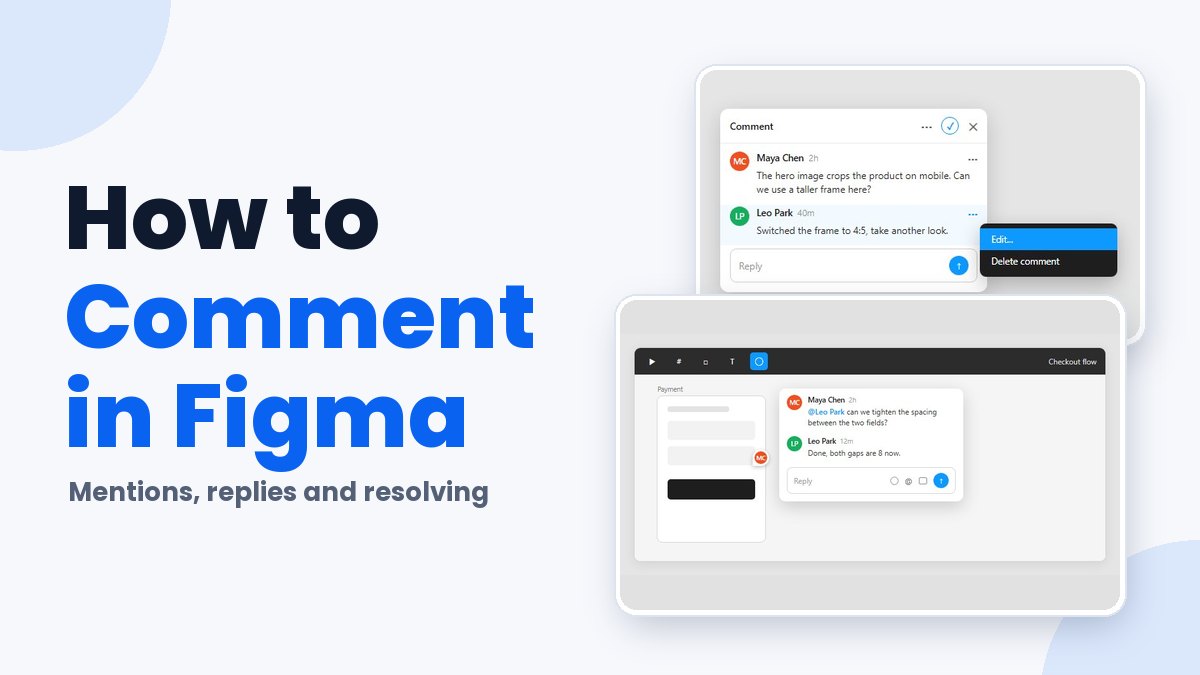
Press C, click the spot on the canvas you want to discuss, type the message and send it. That is how to comment in Figma, in the browser and in the desktop app.
Anyone with at least can view access to a file can post a comment, on any team or plan. Comment mode pins the message to a point or a region. It also locks canvas edits until you press Esc.
One limit catches heavy reviewers. Figma allows 100 comments per hour, replies included, across all of a user’s files and prototypes (Figma Help Center, 2026).
How to Add a Comment in a Figma Design File
The steps are identical in the browser and the desktop app. Comment mode starts from the toolbar comment icon or from C, one of the Figma keyboard shortcuts that works in both.
- Click the comment icon in the toolbar, or press C. The cursor turns into a comment icon.
- Click the location on the canvas to pin the comment there, or click and drag to select a region.
- Type your message. The emoji icon, @ for a mention and the image icon sit in the same field.
- Click the send button.
Esc or any other tool gets you back to editing. While comment mode is on, objects on the canvas are locked.
The rate limit is 100 comments per hour, and it counts new comments and replies across all your files and prototypes (Figma Help Center, as of October 2026). A review pass with more than 100 notes will run into a second hour.
What a Comment Attaches To
Pins and regions placed inside a top-level frame, component or group attach to that frame. Move the frame and its comments go with it.
Nested frames, components, groups and other layers don’t take comments at all. Drop a pin on one of them and it lands on the top-level frame around it.
Cutting a layer or frame and pasting it somewhere else disconnects the comment from that layer, according to the Help Center. The comment still shows up in the right sidebar. If you want the feedback to stay with the design on another page of the same file, use Move to page instead of cutting. Comments won’t follow layers that are cut and pasted between files.
Have you seen the latest Figma statistics?
Discover comprehensive Figma statistics including revenue growth, market share, user demographics, and funding data.
Check them out →A dragged region suits an area, like a card group or a form block. For a single element, a pin is enough.
Who Can Comment in Figma?
Anyone with at least can view access to a file can add and view comments, according to the Figma Help Center. A paid seat is not named as a requirement.
Viewers can reply too, and commenting is supported on every team and plan. Prototype comments are the exception, since they need a logged-in Figma account.
Because commenting works everywhere, the gap between free and Professional accounts doesn’t change who can leave feedback.
File access is the lever. Move a collaborator from can view to can edit only when they need to change the design, not just to let them comment.
Prototypes carry a second condition. In presentation view you need at least can view access and a logged-in account, so a visitor who isn’t signed in can’t comment.
How to Mention Someone and Reply in a Comment Thread
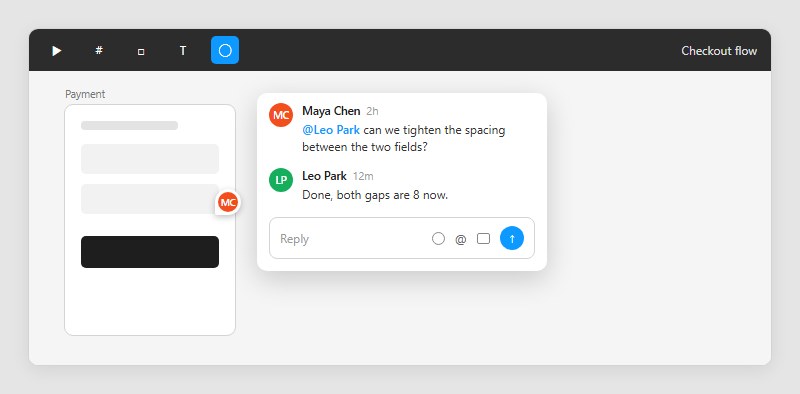
Type @ in the comment field, start typing a name or email, and pick the person from the list. Figma shows the mention in blue and emails the collaborator your comment with a preview of the design.
If they have in-app notifications on, they also get one inside Figma.
Who appears in the list depends on your permission level and your plan.
| Account type | Who you can mention | Reach limit |
|---|---|---|
| Personal account | File collaborators and commenters, shared folder or team members | Same-permission users among your last 100 interactions |
| Starter, education or Professional team | Members: all team members and file collaborators | Non-members: team people among your last 250 interactions |
| Organization or Enterprise | Members: all members and guests | Guests: last 100 organization members they interacted with, plus file collaborators |
If someone is missing from the list, invite them to the file first and mention them after.
On Organization and Enterprise plans, @ also accepts a user group name and notifies everyone in that group at once. Guests can only mention groups they belong to.
To reply, select the comment on the canvas or in the sidebar, type in the Reply field and press Enter. Replies thread under the original comment. Hover over the comment body to pick a reaction, and note that Figma uses the Apple emoji set. Each comment or reply takes up to 5 images or GIFs, in PNG, JPEG or GIF format.
Replies also work from the Slack and Microsoft Teams integrations, per the Help Center.
How to Resolve, Edit and Delete Comments
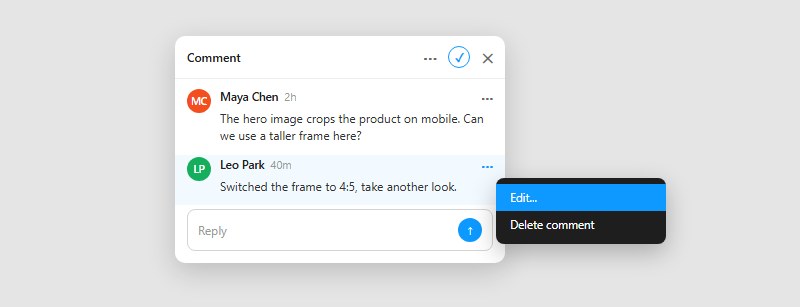
Resolve with the check icon in the top-right corner of the thread. Editing and deleting both go through the comment menu. Resolving can be undone, deleting can’t.
Resolving hides the comment from both the canvas and the right sidebar.
To bring a resolved thread back, open the sidebar filter in comment mode, turn on Show resolved comments, then uncheck the resolved icon on the thread.
Editing works on comments you posted. Select the comment, open its menu, choose Edit…, change the text and click Save.
For a single comment, open the menu next to it and choose Delete comment. To remove a whole thread, open the menu next to the comment’s title, choose Delete thread and confirm.
Deleting a comment that has replies removes the entire thread. The action is permanent, and a deleted comment doesn’t come back even after you restore an earlier version of the file.
Who can resolve other people’s comments is where the sources disagree. Figma’s FigJam documentation says anyone with can view or can edit access can resolve comments. A Figma support reply relayed in a Community Forum thread that began in December 2021 says viewers cannot resolve other users’ comments.
One is a documentation page for FigJam, the other a forum thread from December 2021, and neither settles which rule applies to a Figma Design file today.
Test with a view-only account before telling reviewers they can close threads themselves.
How to Find, Filter and Hide Comments
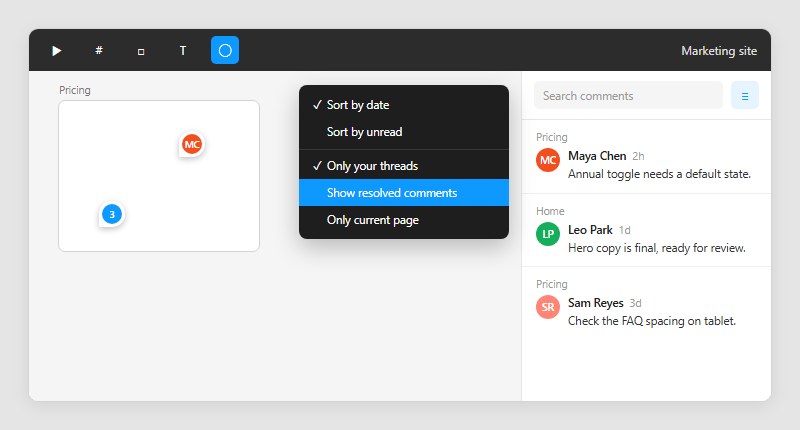
Enter comment mode and the right sidebar lists every comment in the file, with search, sort and filter controls at the top. Each entry shows the page it sits on, and clicking it opens that page at the pin.
On the canvas, nearby pins merge into clusters as you zoom out. Hover a cluster to preview how many comments it holds and who wrote them, then click to focus on the ones inside.
Sorting and Filtering in the Comments Sidebar
The filter menu at the top of the sidebar sorts by date, which follows the first comment in each thread, or by unread, which puts unread comments first. Only your threads narrows the list to comments that mention you, threads you replied to, and your own comments that received replies. Show resolved comments is off by default. Only current page limits the list to whatever page you have open.
The search box finds comments by keyword, and any comment can be marked as unread for yourself.
A Community Forum post from a designer auditing a file with 100+ comments complains that the mentions filter also lists their own comments. That matches the Help Center definition of Only your threads, because it includes threads you started that received replies.
The same post reports that closing the panel resets the scroll position. In a large file, keep the panel open until the review pass is done.
Hiding Comments From the Canvas
Comments stay visible on the canvas by default, in or out of comment mode.
Press Shift + C to toggle them off and on. Once hidden, they’re reachable only in comment mode. A step-by-step guide to hiding comments in a Figma file covers the routine in more detail.
Hiding applies to your view only. The Figma mobile app has its own button for turning comments on and off.
Why Comments Are Not Showing
When comments you know exist have vanished, it’s usually one of these documented situations.
- You hid them with Shift + C, so they appear only in comment mode
- Show resolved comments is off, which removes closed threads from both the sidebar and the canvas
- Only your threads or Only current page is checked in the sidebar filter
- The prototype was opened with its toolbar and footer hidden, and Figma doesn’t display comments in that state
- The file is a duplicate, and Figma does not copy comments to the new file, so they stay on the original
Start with the shortcut and the filter menu. The file itself comes last.
How Comment Notifications Work in Figma
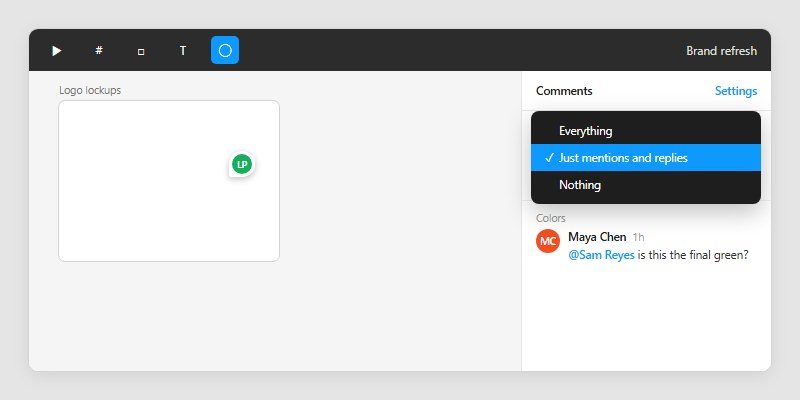
Open comment mode, click Settings at the top of the right sidebar and choose Everything, Just mentions and replies, or Nothing. The choice applies to email notifications for that one file.
| Setting | New comments on the file | @mentions of you | Replies and reactions in your threads |
|---|---|---|---|
| Everything | Yes | Yes | Yes |
| Just mentions and replies | No | Yes | Yes |
| Nothing | No | Yes, still emailed | No |
Nothing doesn’t silence mentions, because Figma still emails you when someone @mentions you. Mentions include user groups you belong to.
In-app notifications can’t be turned off. The notifications modal in the file browser keeps the 50 most recent, and a single comment notification can be answered inline.
Timing is slower than you’d expect. Figma groups comment notifications and sends them every 30 minutes, according to its notifications documentation, so a reply left now won’t reach an inbox right away.
The starting setting is where the sources disagree. The Figma Help Center says file owners get email for all comments by default, and that a non-owner who leaves two or more comments on a file is notified about all new comments on it. A Community Support reply from March 2024 says non-owners get mentions and replies by default, and that the account-level email setting covers only files you own.
Two sources, two different starting points for non-owners, and neither page says whether the defaults changed. Treat the per-file setting as the source of truth and check it after your second comment on any file you don’t own.
Alerts also stop when a file’s access changes from Anyone to Only invited people. Collaborators with no direct role in the file, project or team lose its notifications.
To get alerts in Slack, connect the Slack integration and you’ll hear about comments on any file or thread you’re active on. For mobile push, tap your organization’s logo, then Notifications, and set your preferences there.
Owners who want less email should pick Just mentions and replies. Reviewers who must see every note should pick Everything.
Commenting on Prototypes, FigJam and Mobile, and How Annotations Differ
Comments work in prototypes, FigJam and the mobile apps, but each surface has its own entry point and its own limits. Annotations are a separate feature with a different viewing rule.
| Surface | How to start | Notable limit |
|---|---|---|
| Prototype in presentation view | Toolbar icon or C | Threads can be viewed and replied to only in presentation view |
| FigJam | Toolbar icon or C | Only a comment’s creator can edit or delete it |
| Mobile apps | Figma app: long-press the canvas. FigJam app: long-press the board, then Add a comment | Quick reply view lets you resolve comments you added |
Prototype threads open with a prompt to join the conversation, and replies thread under the original comment. The Options menu in the toolbar holds Show resolved comments and Show only your comments. The first is greyed out until the prototype has comments.
Feedback pinned to the exact screen makes this view handy when you’re running client presentations in Figma.
FigJam follows the same pin or region method. A comment placed on a shape or sticky attaches to that object, and a table takes comments but not individual cells.
A mention typed into a sticky or text object is a lighter tag. Nobody can reply to it, so use a comment when you want an answer.
On mobile, tapping a comment opens a quick reply view without loading the whole file. From there you can reply, long-press to react, resolve a comment you added, or choose Open comment in file for the full canvas.
Comment notifications land in the Activity tab. The quick reply view lists resolving for comments you added, which is a third data point on who can resolve, though Figma’s page doesn’t say whether that limits other people’s comments.
Annotations carry their own viewing rule. Figma’s Help Center says viewing annotations and measurements does not require a Full seat, but it does require a Full or Dev seat and at least can view access to the file. A Figma staff reply in the Community Forum describes the same rule, and users in those threads report that holders of View seats cannot see annotations.
One designer says they found out live during a review with a developer team, when the annotations were missing from the developers’ screens.
Set that against the Help Center rule that comments need only can view access, and the result is plain. A stakeholder without a Full or Dev seat can comment but cannot read annotations. Put feedback that stakeholders have to answer in comments, and keep annotations for people who hold a Full or Dev seat.
Commenting in Figma FAQ
How is a comment different from cursor chat?
Cursor chat text stays on screen for five seconds after you stop typing, caps at 52 characters and is never logged. A comment sticks around as a threaded note pinned to the canvas, so anything that has to last belongs there (Figma Help Center).
A separate guide to chatting in Figma covers the live tools.
Can you move a comment to a different spot?
Yes. In comment mode, select the comment, click its pin on the canvas and drag the pin to the new location, per the Figma Help Center.
Dragging a comment to another part of the canvas also keeps it open while you edit the design.
Does Dev Mode have its own comment tool?
It does. Figma’s Help Center describes opening comment mode while Dev Mode is on: switch Dev Mode on with Shift + D, then click Comment or press C. A Community Support reply from November 2023 said Dev Mode had no way to leave notes and pointed users to the regular comment system, but that reply is nearly three years old and current documentation no longer matches it.
Developers without a Dev Mode seat can still use the regular comment tool. A guide to Figma Dev Mode covers what it does offer.
Can you comment in Figma Make?
Yes. Click Show comments at the top of the editor or a shared preview, then click the element you want to discuss.
Figma Make attaches a screenshot of that element’s current state to the comment, and comments go only on the latest version of the app (Figma Help Center).
Can the Figma REST API read and post comments?
It can. GET and POST requests to /v1/files/:key/comments list and add comments, under the file_comments:read and file_comments:write scopes (Figma developer docs).
A DELETE endpoint removes a comment, but only its author can use it. Replies must target a root comment, not another reply.
Can you export all comments from a Figma file?
Not natively. A February 2024 request on the Figma Community Forum says Figma has no built-in bulk export, and Figma Support logged it as a feature idea.
The CopyDoc plugin fills the gap, exporting a file’s comments to CSV and JSON with a personal access token, according to its documentation.
Where Commenting in Figma Stops Working
Commenting in Figma carries point feedback well and breaks down at triage, once a file’s threads outgrow what the sidebar filters can sort.
One reviewer can post 100 comments in an hour under Figma’s rate limit, which matches the 100-plus comment file where a forum designer reported triage trouble. A single review pass can cross that line in one sitting.
Past that point, move decisions to a call or a tracker, keep pin-level questions in comments, and send specs into developer handoff.
The cost is a second place to look, because feedback that leaves the file loses its pin and its thread.
As of October 2026, the documented filters include no mention-only option, and adding one would raise that threshold.

Many of his resources are available on various design marketplaces. Over the years, he's worked with a range of clients and contributed to design publications like Designmodo, WebDesignerDepot, and Speckyboy, Slider Revolution among others.
- How to Comment in Figma Like a Pro - November 16, 2026
- How to Make a Pie Chart in Figma Without Plugins - November 14, 2026
- How to Export Frames in Figma Without Losing Quality - November 12, 2026