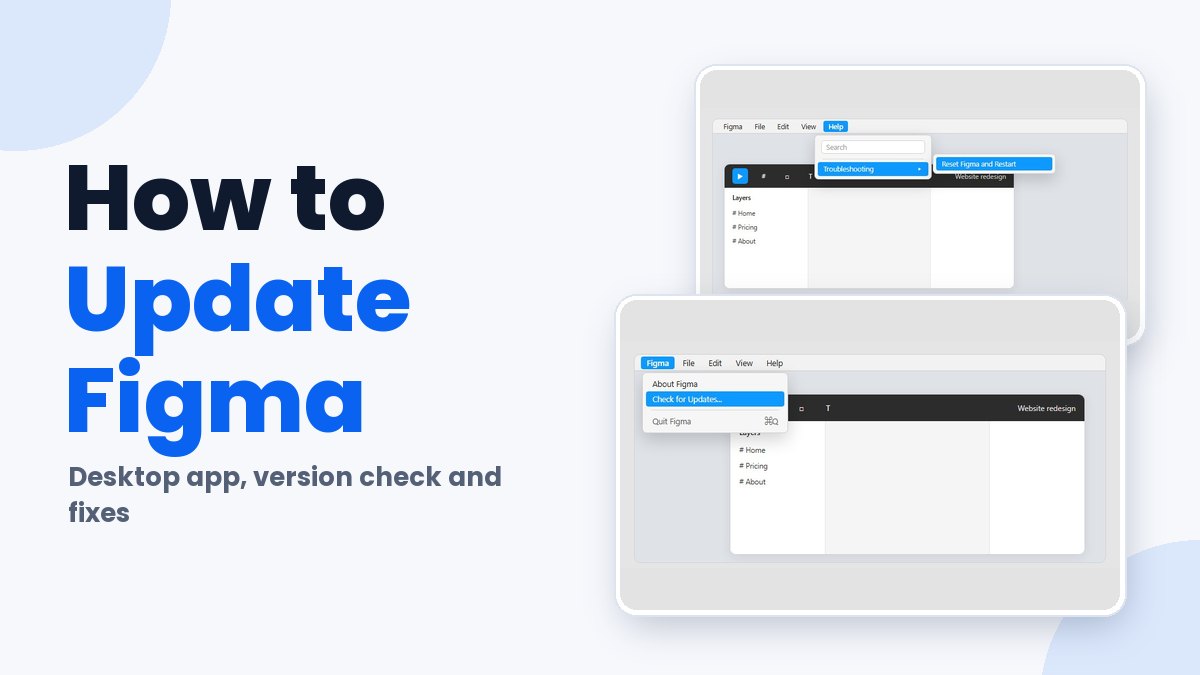
On a Mac or Windows PC, open the app menu, pick Check for Updates… and hit Install now when the prompt shows up. The web app has nothing to install, since it loads the current build every time a page loads.
Figma’s Help Center says support for previous desktop versions ends six months after release, and Figma Community staff (2024) confirm that a semi-automated process disables older builds. So putting off the prompt just delays a forced update.
Company-managed computers are a different story. Windows installs deployed through an MSI never update on their own.
Which Figma update route applies to your setup
Where you run Figma decides everything here. The MSI installer used in Enterprise deployments, for example, behaves nothing like a browser tab.
| Route | How it updates | What you do |
|---|---|---|
| Web app | Loads the current build on each page load | Reload the tab, keep the browser current |
| Desktop app (macOS, Windows) | Prompts inside the app when a newer version exists | Install now, or run Check for Updates… |
| Mobile app (iOS, Android) | Updates through the device’s app store | Update in the App Store or Google Play |
| MSI install (Enterprise plan) | No automatic updates | Admin deploys a newer installer |
Sources don’t agree on how the desktop app updates. Layerpath’s guide says it needs a manual update, other guides describe silent background updates, and Figma’s Help Center describes something in between: a message inside the app that prompts you whenever you’re not on the latest version.
That prompt doesn’t wait forever. Figma’s Help Center says support for previous versions is removed six months after release, and a Figma Community staff reply about version 124.1 confirms a semi-automated process disables older builds on a regular basis.
Ignoring the prompt only buys time. Update when it appears.
How to update the Figma desktop app on Mac and Windows
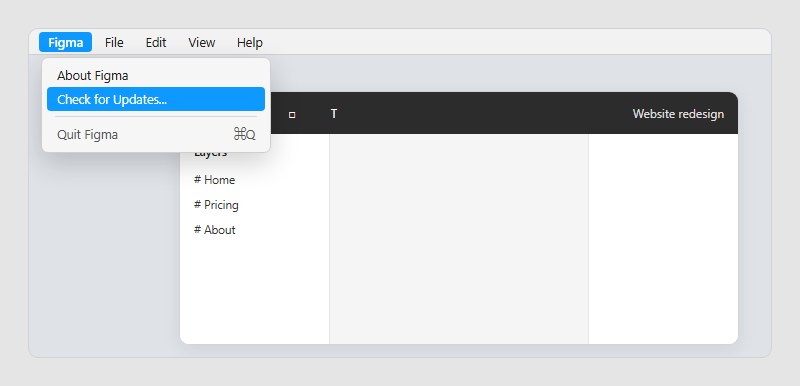
Open the app menu, select Check for Updates…, and install when the prompt appears. The menu sits in a different spot depending on the operating system, but the sequence doesn’t change.
- Open the Figma desktop app (a browser tab doesn’t carry the command).
- Open the app menu. That’s the Figma menu on macOS and the chevron dropdown on Windows.
- Select Check for Updates…
- Choose Install now to restart straight into the new version. If you’re mid-review and can’t lose the session, choose Install on next launch instead.
- Reopen Figma if it didn’t restart on its own, then confirm the version under About Figma.
Some older advice is out of date. A 2021 Community answer says there’s no way to prompt an update and recommends reinstalling, and one staff reply repeated that in September 2024. Other Figma staff replies from 2024 and 2025 describe the menu command above, though.
Have you seen the latest Figma statistics?
Discover comprehensive Figma statistics including revenue growth, market share, user demographics, and funding data.
Check them out →Update Figma on a Mac
The Figma menu sits in the macOS menu bar, directly to the right of the Apple icon. Open it and pick Check for Updates…
Full screen mode hides the menu bar. Move the cursor to the top edge of the screen and the same menu drops down (Figma Community staff, October 2025).
The desktop app needs macOS 12 or later, per Figma’s desktop app guide, and it runs on both Intel and Apple Silicon Macs. Not sure which macOS you’re on? Apple menu, then About This Mac.
That minimum has moved. Version 124.7 asked for macOS 11, according to Community staff, and the current Help Center article lists macOS 12.
Update Figma on Windows
The desktop app wants Windows 10 or later in a 64-bit environment. Where the update command lives is less settled.
Figma Community staff (June 2024) say to select the chevron icon to the left of the window controls, then Check for Updates… Layerpath’s guide says to open Help, then Check for updates.
Start with the chevron. If the command isn’t there, look in the Help menu before assuming something is broken.
Do the Figma web and mobile apps need a manual update?
Not by hand, no. The web app loads its current build whenever the page loads, and the mobile app updates through the App Store or Google Play like any other phone app.
For the web app, reload the tab (Ctrl+R on Windows, Cmd+R on macOS) to pull the newest build. The browser is the part that needs updating, and Figma’s Help Center recommends turning on automatic browser updates.
Figma’s browser requirements article sets these minimums:
- Chrome 99 or later
- Firefox 101 or later
- Safari 16 or later
- Microsoft Edge 121 or later
On mobile, Figma’s Help Center lists iOS 16 or later for Figma for iOS and Android 8 or later for Figma for Android, but the App Store listing for the iOS app currently requires iOS 18.0 or later, so check the store listing for your device. Beta releases of either operating system aren’t supported.
A device below that floor can’t take the update. In December 2023, when the requirement was iOS 16, Figma Community staff told a first-generation iPhone SE owner stuck on iOS 15.8 to move to a device that supports iOS 16, or to use Figma in the mobile browser instead.
How to check your Figma version
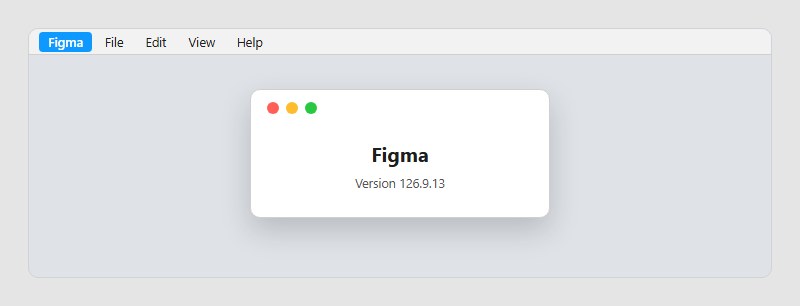
About Figma, in the same app menu that holds Check for Updates…, shows the installed version number.
On macOS it’s the Figma menu, then About Figma. On Windows it’s the chevron dropdown, then About Figma (both paths per Figma Community staff, June 2024).
Versions use a three-part number. Figma staff confirmed 124.3.2 as the latest build for a Windows user in September 2024.
Release notes don’t list version numbers, so reading them tells you nothing about your own install. Figma staff answered that exact complaint the same way every time: run Check for Updates…
The web app has no version number to check. The mobile app uses a separate, much lower numbering (App Store listings show 26.x), so only the desktop number matters for the steps above.
Why is the Figma desktop app not updating?
Most failed updates come down to an app that’s already current, a damaged cache, a broken installation, or a helper tool sitting there waiting for admin credentials. They look different once you know what to watch for.
| Symptom | Likely cause | Fix |
|---|---|---|
| Check for Updates… is missing | Usually already on the latest version | Close and reopen the app |
| Update prompt on every launch | Damaged cache or profile data | Clear the cache, reinstall if it persists |
| Install now restarts into the same prompt | Broken installation | Clear the cache, then reinstall |
| Helper tool asks for admin credentials | Missing administrator permission | Install a fresh download, enter credentials |
People misread the missing command as a bug more than anything else. Figma Community staff said in December 2024 that it disappears when nothing newer exists, and returns once an update is available.
The helper tool row rests on a single user report from October 2023. That IT team found Check for Updates… did nothing until they downloaded the newest installer, and only then did the helper tool prompt appear. Staff replied that they would pass it to the product team, so treat it as a workaround, not documented behavior.
Start with the cache. Figma’s Help Center calls it the common fix for problems that show up only in the desktop app.
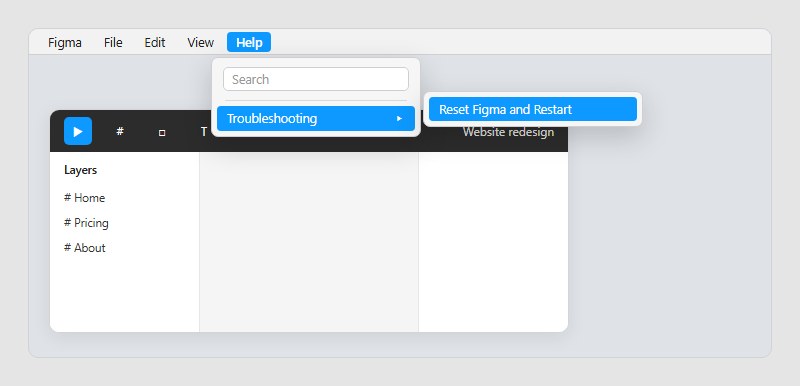
- On a Mac, open Help in the macOS menu bar, then Troubleshooting, then Reset Figma and Restart.
- On Windows, use the toggle arrow at the top right, then Help, Troubleshooting, Reset Figma and Restart.
If the app is frozen, force quit it first. On a Mac, delete the Figma folder under Application Support. On Windows, open %APPDATA%\Figma and delete the Desktop and DesktopProfile folders plus the font_cache and settings files.
The reset also wipes custom settings. One Community member reported losing a custom nudge amount in May 2025.
That same toggle arrow is where Figma’s cache article puts the Help menu on Windows, so the Help path and the chevron path described earlier may be the same dropdown.
Reinstall Figma from the download page
A reinstall is the fallback when a cache reset doesn’t clear the prompt. Figma staff have given the same sequence in Community replies since November 2023.
- Uninstall every Figma app on the device, including Figma Agent, ideally with an app remover.
- Restart the computer.
- Download the latest installer from the Figma downloads page and run it.
- On a Mac, move Figma from Downloads to Applications, then delete the installer.
If the prompt survives a clean reinstall, file a bug report. Staff ask for a full screen recording, the desktop app debug logs and exported network logs (Figma Community staff, July 2025).
When the standard Figma update route does not apply
The prompt-and-install flow assumes a personal machine on a supported operating system. Managed deployments break that assumption, and so do older Macs and the way Windows handles folders.
Managed installs
Figma doesn’t auto-update a Windows deployment made with the MSI installer. Admins on the Enterprise plan subscribe to the release feed at desktop.figma.com/win/releases.xml and push new builds themselves.
The macOS Enterprise installer has a matching feed at desktop.figma.com/mac-universal/releases.xml, and Figma’s macOS deployment guide adds a catch. A system-wide install in /Applications needs write access to the Figma.app bundle before users can auto-update, while a per-user install in ~/Applications updates without special permissions. If the app directory isn’t writable, the app doesn’t try to auto-update, and Figma supports those versions for only two months, so admins have to deploy updates manually and promptly.
Version gaps are something admins end up watching. In February 2025 one reported the console package at 124.6.5 while the website offered 125.1.5, and Figma staff replied that 125.1.5 had been available for both platforms since 28 February.
An update the Mac cannot run
A Mac can auto-update into a build it can’t open. In March 2024 a Community poster reported exactly that, noting that every version before 116.17.9 had run fine. Users on macOS 10.13.6 and 10.15.7 reported the same failure, the latter as late as March 2025.
Until the Mac gets upgraded, use Figma in the browser. And skip older builds shared in forum posts, since those come from community members and not from Figma’s downloads page.
Windows creates a new folder for every update
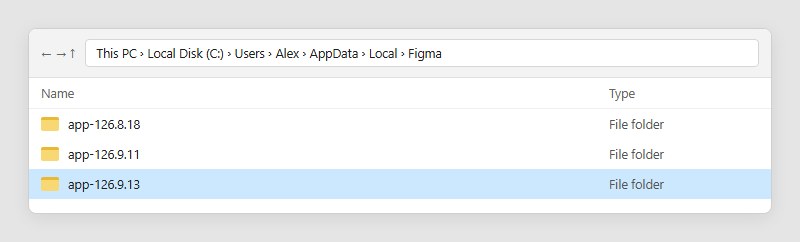
The Windows app installs each version into its own folder under AppData\Local\Figma. An October 2026 Community feature request lists app-126.8.18, app-126.9.11 and app-126.9.13 side by side.
Software that identifies Figma by its executable path loses track of it after each update. The poster’s case was Logitech’s Logi Options+, which stopped applying a Figma-specific mouse profile until the app was added again.
No fix is confirmed. It’s a request, not documented behavior.
Update on prompt or hold updates
Updating on prompt takes no admin work and keeps the version current. Install on next launch also lets you finish your session first. The downside is that an OS mismatch or a changed Windows folder path shows up right away.
Holding updates through the MSI or macOS Enterprise route lets an admin test each build before rollout. The catch is that nothing prompts the user, so someone has to keep an eye on the release feed.
Update on prompt for any personal machine, ideally before shared work starts. Hold updates only where an admin owns the rollout and tests builds.
Figma Update FAQ
Is Figma Beta updated the same way as the regular desktop app?
In practice, yes. Figma staff (October 2026) point Beta users to the same in-app update prompt, and to a fresh install of the latest Beta when no prompt appears.
The Beta installs next to the regular app, so each one needs its own check.
Where can you find the latest Figma desktop version number?
Figma publishes release feeds for it: desktop.figma.com/win/releases.xml for Windows and desktop.figma.com/mac-universal/releases.xml for Mac. A Community answer from August 2024 recommends them on managed machines where the update command has been removed, and Figma’s Help Center names the same feeds for admins.
How often does Figma release a new desktop version?
Figma’s Help Center publishes no schedule for desktop releases, so the release feeds are the reliable record of which build is current.
Do you lose unsaved work when Figma restarts to update?
Not while autosave works. Figma saves to the cloud automatically, and edits made during a connection loss are stored in the browser and synced when the connection returns, for up to 30 days (7 days in Safari). Figma’s Help Center calls autosave a safeguard, not a full offline mode.
If a file shows an unsaved changes warning, hold off on restarting. Community members report that opening the same file in the browser can trigger the sync, so confirm your latest work is there first, or download a local copy of the file. That’s a workaround, not a documented fix.
Does updating Figma also update libraries and plugins?
No. Library updates are accepted file by file by anyone with can edit access, and a blue badge on the Libraries icon marks them.
Plugins update when their author publishes a new version, which reaches every user regardless of app version (Figma Help Center).
Why keep the desktop app on the latest version?
Figma staff (2024) say only the latest desktop build is supported, and in March 2024 they confirmed older versions can’t be supplied. An update has no undo, and the browser is the fallback when a machine can’t run the new build.
Keeping Figma Current on Managed or Older Machines
A Figma update stays routine as long as the machine can run the next build. On older Macs and managed Windows PCs, the order of the checks matters.
Look at the operating system against Figma’s current minimums first, because an unsupported one makes everything else pointless. Then get an admin subscribed to the platform’s release feed, which only pays off once the machine can actually install the build. And keep a supported browser around as the fallback.
Two documented limits combine into a deadline. Support for previous desktop versions ends six months after release, and the Mac minimum rose from macOS 11 (Figma staff, 2024) to macOS 12 (current Help Center guide). A Mac stuck on macOS 11 keeps desktop support for no more than six months after the newer minimum ships.
The advice holds as of 27 October 2026. A new minimum in the desktop app guide would change it.

Many of his resources are available on various design marketplaces. Over the years, he's worked with a range of clients and contributed to design publications like Designmodo, WebDesignerDepot, and Speckyboy, Slider Revolution among others.
- How to Update Figma the Safe Way - November 8, 2026
- How to Convert Figma to React [Step-by-Step] - November 6, 2026
- How to Insert Image in Figma With Ease - November 3, 2026