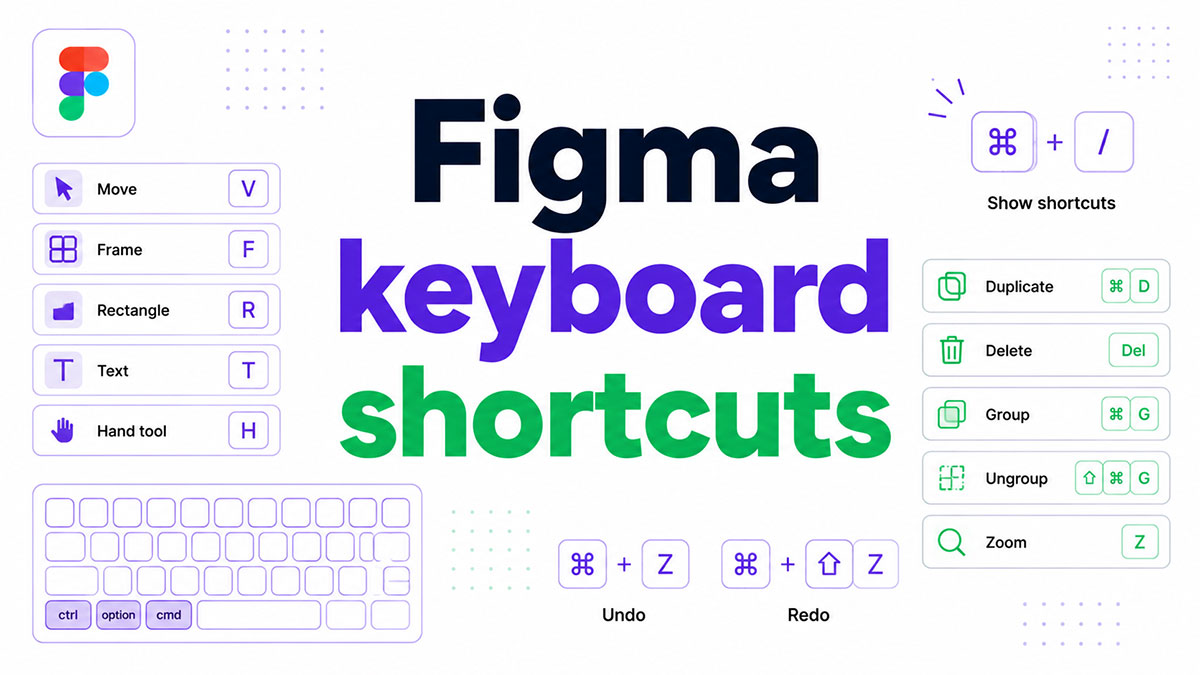
Figma’s keyboard shortcuts work in Figma Design and FigJam files, according to the Figma Help Center. They handle tool switching, layer edits, layout, components and view changes, all without a trip to the menu.
Moving between platforms mostly means Command becomes Ctrl and Option becomes Alt. The single-letter tool keys (V, F, R, T, P) are the same on Mac and Windows.
You can’t remap any of it. Figma does not support custom shortcuts (Figma Community Forum), so when a browser or a password manager grabs a key, the fix has to happen outside Figma.
How do Figma keyboard shortcuts differ between Mac and Windows?
Barely. Swap Command for Ctrl and Option for Alt and most shortcuts carry over. Tool keys like V, F and T don’t change at all.
Devlin Peck’s cheat sheet (updated July 2026) states the same rule. Raycast’s Figma extension now covers macOS and Windows only, after dropping its Linux option in July 2026 because Figma has no native Linux client.
| Shortcut | macOS | Windows | Pattern |
|---|---|---|---|
| Duplicate | Cmd+D | Ctrl+D | Plain swap |
| Copy properties | Option+Cmd+C | Ctrl+Alt+C | Plain swap |
| Suggest auto layout | Control+Shift+A | Ctrl+Alt+Shift+A | Mac Control becomes Ctrl+Alt |
| Shortcuts panel | Control+Shift+? | Ctrl+Shift+? | Mac uses Control, not Command |
The swap rule breaks down wherever a Mac shortcut uses the Control key. Suggest auto layout is the clearest example, and the shortcuts panel also opens with Control on Mac instead of Command (Figma Help Center).
Third-party lists don’t always agree on Mac values either, and some are simply out of date. If a shortcut looks odd, confirm it in the panel before it settles into muscle memory.
Which single keys switch tools in Figma?
Every tool gets one key and none needs a modifier, apart from Arrow and Pencil, which add Shift to the Line and Pen keys.
- V is Move and K is Scale
- F makes a Frame, R a Rectangle, O an Ellipse and L a Line, while Shift+L gives you an Arrow
- P is Pen and Shift+P is Pencil. T is Text
- H for Hand, C for Comment, I for Eyedropper, S for Slice
K deserves a spot in your first five. The Scale tool resizes text and strokes along with the shape, while the Move tool resizes only the container (Devlin Peck’s cheat sheet). That makes it the better pick for scaling a whole design without distorting type.
Have you seen the latest Figma statistics?
Discover comprehensive Figma statistics including revenue growth, market share, user demographics, and funding data.
Check them out →F drops in a frame, which is the container behind every screen and component. Auto layout only works on frames (Figma Help Center), so there’s a good reason for starting each screen with a frame instead of loose shapes.
Holding Space gives you a temporary Hand tool, so pressing H is rarely necessary.
Learn V, F, R, T and P first. The rest follow.
Layer selection, grouping and arrangement shortcuts
Selecting and entering layers
Enter drills into a selected frame or group, and Shift+Enter climbs back up to the parent (Devlin Peck, 2026). Tab selects the next sibling layer and Shift+Tab the previous one. Esc clears the selection.
Hold Cmd/Ctrl while clicking to deep select a nested layer without opening its parents. It saves a trip to the layers panel every time.
Grouping, framing and duplicating
Cmd/Ctrl+G groups the selection. Adding Shift ungroups, and the same keys also dissolve a plain frame or an auto layout frame.
That means one stray press can flatten structure you meant to keep, so check the layers panel after ungrouping in Figma.
Cmd/Ctrl+Alt+G wraps the selection in a frame, which is what makes auto layout available to it.
Cmd/Ctrl+D duplicates. After an Alt-drag copy, pressing it again repeats the same distance, and a rotation carries over to the next copy as well (Figma Help Center).
For copy properties, press Option+Cmd+C then Option+Cmd+V on Mac, or Ctrl+Alt+C then Ctrl+Alt+V on Windows. The right-click route under Copy/Paste as does the same job (Figma Help Center).
A June 21, 2026 forum report described Paste properties not applying after a desktop update, and Figma staff later said a fix had shipped. One user still saw the bug on July 17, and on August 5 a Figma staff member said the Technical Quality team was reviewing a new set of reports, so reload the tab or restart the app before blaming your keyboard (Figma Forum).
Paste to replace (Shift+Cmd+R) swaps a selected object for whatever sits on the clipboard. It works well for placeholder boxes in low-fidelity layouts.
Order, alignment and nudging
| Action | macOS | Windows |
|---|---|---|
| Bring forward | Cmd+] | Ctrl+] |
| Bring to front | ] | ] |
| Align left | Option+A | Alt+A |
| Tidy up | Control+Option+T | Ctrl+Alt+T |
The other alignment keys follow the same letters, with D for right, W for top, S for bottom, H for horizontal centers and V for vertical centers. Distribute adds the Control key, as in Ctrl+Alt+H (Steve Kinney’s Figma course).
Layer order is where the sources disagree most. The Figma Help Center’s keyboard layout page lists plain ] for Bring to front and [ for Send to back on a US QWERTY keyboard, with Cmd/Ctrl+] and [ moving a layer one step. Raycast’s extension and Devlin Peck’s Windows sheet still list the older combinations for Bring to front, Cmd+Option+] on Mac and Ctrl+Shift+] on Windows. Check the shortcuts panel before relying on either.
Arrow keys nudge the selection, and Shift makes each step bigger. If the default step fights your grid, Quick Actions exposes the nudge settings (Figma Help Center).
How to use shortcuts for components and auto layout
Cmd+Option+K creates a component (Ctrl+Alt+K on Windows) and Cmd+Option+B detaches an instance (Ctrl+Alt+B). Shift+A adds auto layout on either platform.
Create component turns the selection into a main component. Detach instance breaks the link and leaves a plain frame. Shift+A works on frames, components and loose layers, and Option+Shift+A removes auto layout again (Alt+Shift+A on Windows).
Detaching keeps the layers and properties but cuts the link, so later edits to the main component no longer reach that object (Figma Help Center). Made a component by accident? Cmd/Ctrl+Z straight away undoes it.
Auto layout only exists on frames. Press Shift+A on loose layers and Figma wraps them in a new auto layout frame. The properties behind that frame (direction, spacing, padding) are laid out in this overview of using auto layout in Figma.
A button shows how these shortcuts chain together. The sequence below follows the usual route for making a button in Figma, with the keys doing the structural work.
- Select the text layer that holds the label.
- Press Shift+A so Figma wraps the text in an auto layout frame.
- Set padding and fill in the right panel.
- With the new frame selected, press Cmd/Ctrl+Alt+K to make it a component.
- Later, detach any one-off instance with Cmd/Ctrl+Alt+B.
Suggest auto layout handles bigger selections. It sits on Control+Shift+A on Mac and Ctrl+Alt+Shift+A on Windows, and the Help Center says it copes with moderately complex designs such as cards, navigation bars and mobile screens. For something as large as a website, run it in batches.
There’s no shortcut for stripping every auto layout inside a frame. Select the parent frame, open Quick Actions and type “Remove all auto layout” (Figma Forum answer, May 2024).
Text formatting shortcuts in Figma
Bold, italic and underline use Cmd/Ctrl+B, I and U, the same keys as most text editors. Size, spacing and alignment each get their own combination.
| Action | macOS | Windows |
|---|---|---|
| Bold, italic, underline | Cmd+B, I, U | Ctrl+B, I, U |
| Font size | Shift+Cmd+< or > | Ctrl+Shift+< or > |
| Line height | Shift+Option+< or > | Alt+Shift+< or > |
| Letter spacing | Cmd+< or > | Ctrl+< or > |
| Align left, center, right, justify | Option+Cmd+L, T, R, J | Ctrl+Alt+L, T, R, J |
For font size, the greater-than key raises the value and less-than lowers it (Figma Help Center, keyboard layout page; Devlin Peck’s Windows sheet agrees). The Help Center lists Cmd/Ctrl for letter spacing on a US QWERTY keyboard, while the Raycast extension lists Option/Alt. Uxcel’s text lesson lists the opposite direction for line height. Test one press before applying anything to a whole layer.
Strikethrough is Shift+Cmd+X (Shift+Ctrl+X on Windows), according to a June 2024 answer on the Figma Forum.
Paste without formatting is Shift+Cmd+V. In August 2025 a forum user reported it had stopped working, and Figma support could not reproduce the problem, asked for a full restart, and pointed to a bug report if the issue stayed.
Option+Cmd+C and V also carry text styling between layers, either onto highlighted characters or with the cursor inside a string (Figma Help Center). For the editing side of a text layer, there’s a separate walkthrough on editing text in Figma.
Zoom, pan and view shortcuts
Shift+1 zooms to fit the whole page and Shift+2 zooms to the selection. Both are listed in the Figma Help Center and both work the same in FigJam.
To pan, hold Space and drag, or press the arrow keys with nothing selected (Shift makes them faster). To zoom, hold Cmd/Ctrl with plus or minus, or use Shift with plus or minus. Cmd/Ctrl+\ shows or hides the interface, Shift+R toggles rulers, and the pixel grid is Cmd+’ on Mac and Ctrl+’ on Windows.
Files open at Zoom to fit, and any zoom change applies only to the current tab (Figma Help Center). Controls beyond shortcuts are covered in this guide to zooming in Figma.
Zoom to 100% has no documented key in the Help Center, which offers 50, 100 and 200 percent presets in the Zoom/view options menu instead.
Third-party lists split on the rest. Shift+0 appears in Devlin Peck’s 2026 sheet and Topcoder’s guide, while Cmd/Ctrl+0 appears in the Raycast extension and Noble Desktop’s cheat sheet.
Neither is official, so test both once and keep whichever responds.
The Help Center’s keyboard layout page lists Shift+G for layout guides. Uxcel’s lesson and the Raycast extension give Control+G on Mac and Ctrl+Shift+4 on Windows for the same toggle (Raycast calls it Layout Grids), so the lists disagree on both the key and the name.
Until you settle on one, the Zoom/view options menu does the same job, and it is also the quickest route to hiding the grid in Figma.
The pixel grid only shows at 400% zoom or higher (Figma Help Center). Snap to pixel grid covers the gap when you work zoomed out, though frames, sections and components always snap even with it switched off.
How can you find a shortcut you cannot remember?
Press Control+Shift+? on Mac or Ctrl+Shift+? on Windows to open the shortcuts panel. Or press Cmd/Ctrl+/ for Quick Actions and type the name of the command.
The shortcuts panel
According to the Figma Help Center, you can click Help and resources in the bottom-right and choose Keyboard shortcuts, type “Keyboard shortcuts” into the actions menu, or just press the panel shortcut from the answer above.
The panel docks along the bottom of the screen with category tabs and a Layout tab, and you can keep working while it is open.
Shortcuts you have already used show highlighted, blue in Figma Design and purple in FigJam. It doubles as a progress check.
Quick Actions
On Mac it opens with Cmd+/ or Cmd+K, and on Windows with Ctrl+/ or Ctrl+K (some third-party lists add Cmd/Ctrl+P). It finds installed plugins and widgets, menu items, asset search results, and settings such as layout guides, rulers, snap to pixel grid and nudge amount. The share modal, presentation view, file browser and Community are out of reach.
Quick Actions also runs commands that have no shortcut at all, so for rare tasks it beats memorizing. Figma staff confirmed in May 2023 that no full list of Quick Actions exists, which means discovery comes down to typing and reading the results.
Which file types support them
The Help Center’s keyboard layout page covers Figma Design and FigJam files only.
| File type | Coverage found | Detail |
|---|---|---|
| Figma Design | Full set, shortcuts panel | L draws a line, Shift+L an arrow |
| FigJam | Shortcuts panel | L draws a straight line, X or Shift+L an elbow connector |
| Dev Mode | Toggle only | Shift+D switches with Design |
| Figma Slides | No dedicated list | Forum report: Cmd+K opens search, not a link |
None of the sources checked list shortcuts specific to Dev Mode. Shift+D toggles in and out of it, so getting out of Dev Mode in Figma takes a single key.
Why are Figma shortcuts not working?
Usually something else grabs the keys first. That might be the browser, another app, or a keyboard layout that moves the key somewhere else.
The browser is the most common culprit. In April 2024, Cmd+D, Cmd+Shift+G and Cmd+Shift+H triggered Chrome actions whenever focus sat in the layers sidebar, and reports continued in August 2024 and February 2025 (Figma Forum).
Other apps cause trouble too. Figma support names 1Password as a known override of Cmd+\ (February 2025), and browser extensions can interfere as well. Layout matters on top of that, since some keys in the defaults are not available on other keyboard layouts (Figma Help Center).
Copy properties collides as well. A May 2023 forum user reported Option+Cmd+C opening Chrome’s developer console.
Try these in order.
- If the failure starts right after clicking in the layers panel, right-click the layer, close the menu and retry (a forum workaround from August 2024).
- Reproduce it in the desktop app and in another browser such as Safari, Edge or Firefox, as Figma community support advised in August 2024.
- Quit apps and disable extensions that claim the same keys.
- Confirm your layout under Preferences, then Keyboard layout, or on the Layout tab of the shortcuts panel.
- Still stuck? Submit a bug report with the product, the app version and whether it happens in one file or all of them, which is what Figma support asked for in August 2025.
Figma’s defaults assume a US QWERTY keyboard. The Layout tab offers 15 layouts, from French AZERTY and German QWERTZ to Japanese (Kana) and U.K. (Mac / PC), and the choice applies to the whole account (Figma Help Center).
Only a selection of popular shortcuts is remapped so far, including Quick Actions, Show and hide UI and Select parent.
Figma does not support custom shortcuts. Community support on the Figma Forum says so directly, and its replies list password managers among the apps that grab the same keys. Dualite’s 2026 guide says shortcuts can be reassigned under Preferences, which contradicts those replies. The Help Center’s own Preferences instructions only offer a Keyboard layout setting.
On Mac, one forum user rebound Copy and Paste properties through macOS system settings in January 2026. That is an operating system workaround, not a Figma setting.
Which shortcut reference is worth using?
The shortcuts panel wins for accuracy. Quick Actions covers whatever you can’t find, and a printed sheet only earns its place for the few shortcuts you press every day.
| Option | Best for | Limit |
|---|---|---|
| Shortcuts panel | Values matching your layout | Shows a selection, not every command |
| Quick Actions | Commands without shortcuts, plugins | No full list exists |
| Printable cheat sheet | Learning a core set offline | Goes stale, some cover one platform |
| Raycast extension | Searching and copying from the desktop | Third-party values |
Check the date on any sheet. Devlin Peck’s carries July 3, 2026, the Contra Notion pack warns that shortcuts change with product updates, and Pavel Zhaurov’s PNG set covers Windows only.
Published shortcut counts run from 105 in Skillademia’s sheet to 113 in Dualite’s guide and 140+ in the Raycast extension, with 155+ in Pat Morgan’s Notion database. None of them comes from Figma, so no count works as a benchmark.
Downloading a sheet is the obvious first move, and it’s also the one most likely to steer you wrong. The disagreements over layer order, 100% zoom and layout grids show how far third-party lists drift apart, so cross-check any value in the shortcuts panel before it becomes a habit.
Figma Keyboard Shortcuts FAQ
What are Figma keyboard shortcuts?
Figma Design and FigJam files both accept key combinations and single-letter tool keys that run commands with no menu clicks. They reach tools, layers, components, text and view settings.
Which Figma shortcuts should a beginner learn first?
Begin with V (Move), F (Frame), R (Rectangle), T (Text) and P (Pen). Then add Cmd/Ctrl+D to duplicate and Shift+A for auto layout.
Save Cmd/Ctrl+/ for last. Quick Actions finds everything else by name.
How do you flip a layer with the keyboard?
Press Shift+H to flip the selection horizontally and Shift+V to flip it vertically. Neither key changes between Mac and Windows (Raycast Figma extension).
What is the shortcut to copy a layer as a PNG?
Cmd+Shift+C on Mac and Ctrl+Shift+C on Windows (Keyboardista).
Copy properties lives on a different combination, Option+Cmd+C, so the two are easy to mix up.
Can you place an image or export a selection by keyboard?
Yes. Place image is Shift+Cmd+K on Mac and Ctrl+Shift+K on Windows.
The export dialog opens with Shift+Cmd+E on Mac, and Ctrl+Shift+E on Windows by the usual swap.
How do you lock or hide a layer with a shortcut?
Cmd/Ctrl+Shift+L locks or unlocks the selection, and Cmd/Ctrl+Shift+H shows or hides it.
Hiding only removes the layer from view. It stays in the file.
Is there a shortcut for renaming a layer?
Press Cmd+R on Mac or Ctrl+R on Windows with the layer selected.
In a browser, Chrome can take this key first. A February 2025 forum report described the page refreshing instead of the layer name opening for edit.
Making Figma Keyboard Shortcuts Stick in Daily Work
Shortcuts stick when you practice them in a fixed order, starting with the keys least likely to clash with other software.
Start with the single-letter tool keys V, F, R, T and P. Cmd/Ctrl+D and Shift+A come next, and anything rare can go through Quick Actions.
Tool keys carry no modifier, and every clash in the forum reports reviewed here involved a modifier combination, such as Cmd+D, Cmd+\ or Option+Cmd+C. Single-letter keys therefore return the most speed with the least interference.
The cost is delay. Alignment and text shortcuts wait until the daily set is automatic, and each extra modifier combination adds another key that a browser or password manager can capture.
Values were verified in October 2026. The advice changes if Figma adds custom shortcuts, because clashes would then be solved inside Figma.
A structured route to learn Figma is the natural next step, since shortcuts speed up work that is already clear.

Many of his resources are available on various design marketplaces. Over the years, he's worked with a range of clients and contributed to design publications like Designmodo, WebDesignerDepot, and Speckyboy, Slider Revolution among others.
- How to Insert Image in Figma With Ease - November 3, 2026
- How to Download Figma Files Fast and Free - October 30, 2026
- Figma Keyboard Shortcuts That Will 10x Your Speed - October 25, 2026