Which download you want depends on whether the design stays in Figma. Save local copy produces an editable .fig file, while the Export section produces PNG, JPG, SVG or PDF assets. Anyone with at least can view access can use either, unless the file owner restricted copying and sharing.
One catch up front. A local copy drops version history and comments, and a reimported copy has no link to the original file (Figma Help Center, 2026).
The same menu path covers Figma’s other products too, with .jam, .deck, .buzz, .site and .make files.
How Do You Download a Figma File?
Either save a local .fig copy you can edit again, or export layers as PNG, JPG, SVG or PDF assets.
A .fig copy stays editable inside Figma. Exports are finished artwork, the kind that goes into sites, slides, print or a developer handoff.
| Method | Output | Editable in Figma | Access needed |
|---|---|---|---|
| Save local copy | .fig file | Yes, after reimport | Can view, unless restricted |
| Export section | PNG, JPG, SVG, PDF | No | Can view, unless restricted |
| Dev Mode assets | Assets for handoff | No | Full or Dev seat |
Pick by destination. If the file needs more work in Figma, or is moving to another account, save a local copy. If the artwork is going somewhere else, export it.
Save local copy works on any plan, per the Figma Help Center (checked October 2026). The only thing that blocks it is a file owner restriction.
How to Save a Local Figma File
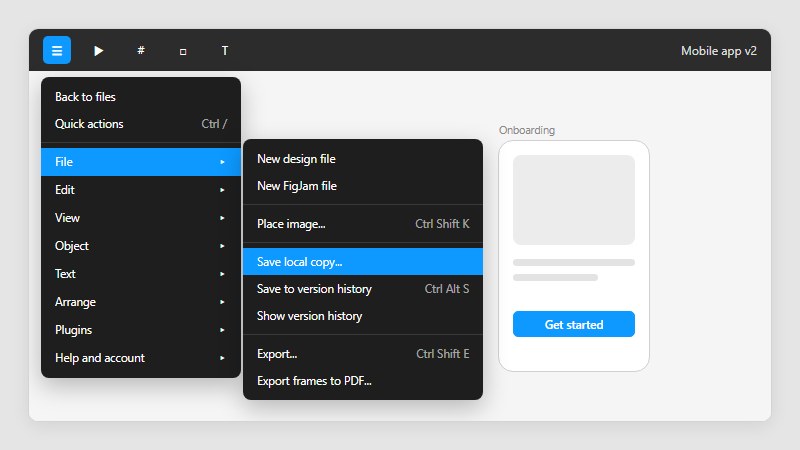
Open the file, click the main menu, and choose File, then Save local copy. Figma downloads a .fig file to your downloads folder, according to its Help Center (as of October 2026).
- Open the file in the browser or the desktop app.
- Click the main menu in the top-left corner.
- Go to File and select Save local copy.
- Find the .fig file in your downloads folder.
Anyone with at least can view access can do this, as long as the file owner has not restricted copying and sharing.
Have you seen the latest Figma statistics?
Discover comprehensive Figma statistics including revenue growth, market share, user demographics, and funding data.
Check them out →Each save covers one file. Doing dozens at once is a different problem.
Saving From the Browser
The menu path is identical, and the file lands wherever the browser sends downloads. In a default setup that is the downloads folder.
If your browser asks where to save each download, put the date in the file name. Local copies of the same file pile up fast, and Figma gives them no version history to tell them apart.
Saving From the Desktop App
Same path, same .fig output.
Grida’s import guide describes a folder prompt at this step, while Figma’s own documentation only mentions the downloads folder. Check where the file landed before you close the file.
What a Downloaded .fig File Keeps and Loses
A .fig file keeps the design itself and drops everything around it.
Pages, the full layer hierarchy, vectors, fills, strokes, effects, text styling, components and their instances all come along. Version history and comments don’t, and neither does the connection to the original file.
Figma treats a reimported copy as a brand new file, per its Help Center. Components become new main components, and instances attach to those new mains, so updates to the original never reach them.
Reimporting is a drag into the file browser of the account you want the file in. The same applies when you are copying a file over to another account.
A June 2025 thread on the Figma Community forum shows what that costs. A team that moved from a Professional plan to an Organization plan through local copies found its component and variable connections to the design system broken, and reported that Figma’s repair commands changed nothing.
Figma community support suggested running Regenerate all instances, or making a small edit to the main component and republishing it.
The .fig format is proprietary and may change, so Figma advises against third-party tools that read it and points builders to its supported APIs (Figma Help Center).
Use a local copy for backups and transfers. Keeping two files in sync isn’t something it does.
How to Export Frames and Layers as PNG, JPG, SVG or PDF
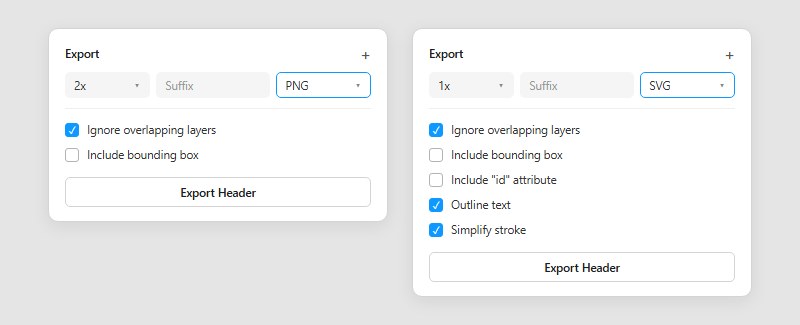
Select what you want, open the Export section at the bottom of the Design panel, click the plus icon, pick a format and scale, then click the Export button.
- Select a frame or layer on the canvas or in the Layers panel. With can edit access, the Slice tool also exports a custom portion of the canvas.
- Scroll to Export in the Design panel and click +.
- Choose PNG, JPG, SVG or PDF.
- Set the scale and, if needed, a suffix.
- Click the Export button, which carries the layer name.
Pulling out one image works the same way, and there is a separate guide on downloading an image from Figma if that is all you need.
Setting Scale and Suffix
Figma exports SVG and PDF at 1x only, per the Figma Help Center. For any other scale, choose PNG or JPG. An SVG can still be resized afterward through its width and height values in code.
Scale takes a preset or a custom value, and Figma community support recommends 2x to 4x for sharper raster exports (2024). The suffix is optional text added to the exported file name, handy for separating versions such as @2x. There is also a size cap, since Figma resizes an export proportionally when either dimension passes 4096 px (Figma community support, 2023).
Exports default to 72 DPI, so print work needs a higher scale, according to the Figma Help Center.
Large batches hit a second limit. Figma support attributes cut-short, pixelated exports to the browser tab’s memory limit and recommends exporting in smaller chunks.
Exporting From Dev Mode
Dev Mode lists exportable items in its Assets panel, so developers can pull assets without asking a designer to export them.
Access depends on the seat, per Figma’s pricing FAQ (as of October 2026). A Full seat covers Figma Design and Dev Mode. A Dev seat gets Dev Mode plus view and comment access in Design files, and Collab and View seats are limited to basic inspection.
A fuller look at working in Dev Mode covers the inspect panel and handoff beyond asset export.
For handoff, Dev Mode export is cleaner. Anything you send outside the team is better exported from the Export section.
Which Export Format Fits: PNG, JPG, SVG or PDF
Use PNG for UI screens and graphics with text, JPG for photos, SVG for icons and logos, and PDF for documents and print mockups.
| Format | Type | Best for |
|---|---|---|
| PNG | Raster, lossless | Logos, charts, screens with text |
| JPG | Raster, lossy | Photos, smaller files |
| SVG | Vector | Icons, scalable artwork |
| Vector document | Slide decks, print mockups, iOS assets |
Figma exports PNG as 32-bit RGBA and cannot export one without the alpha channel (Figma Help Center, 2025).
PDF output is version 1.7, with text exported as glyphs. You can select and copy that text in a viewer, but not edit it.
A dedicated guide covers exporting Figma frames to PDF if the document is the whole point of the export.
Settings vary by format, according to the same help article. PNG and JPG offer ignore overlapping layers and include bounding box. SVG gets those two plus include “id” attribute, outline text and simplify stroke, while PDF has none.
Outline text is on by default when a text layer is selected. Leave it on when the SVG will open on a machine that does not have your font installed, and turn it off only if you need the text to stay editable.
The help center limits both SVG and PDF to 1x. Red Shark Digital’s guide (updated May 2023) says the same about SVG, so the sources agree on that point.
Anything that must stay sharp at every size should be an SVG. And if text sits inside the image, PNG beats JPG.
For a logo that has to ship in both formats, this breakdown of how SVG and PNG differ covers the trade-offs.
Why Save Local Copy or Export Is Missing
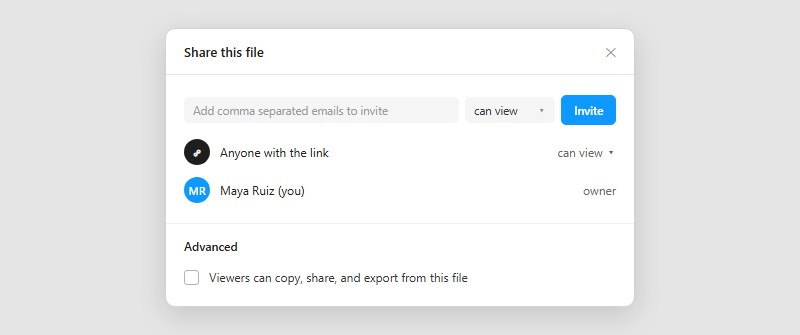
The file owner turned off “Viewers can copy, share, and export from this file.” That one setting hides Save local copy and export for everyone with can view access, including people who joined through a link (Figma Help Center, as of October 2026).
People under that restriction also can’t copy frames, layers or text from the canvas, duplicate the file to their own account, export any assets, or save a copy to their computer.
Plan matters, because the restriction is a paid-plan setting (Professional, Organization, Enterprise), per Figma community support in 2024. It applies per file, not per project, so one project can hold both open and locked files. In Figma Slides the export option disappears when the deck owner restricts viewers.
Figma Make is murkier. A user on an Enterprise plan reported in September 2025 that Save local copy had vanished from a Make file, and that thread carries no official answer.
Education teams had an extra quirk. Figma community support confirmed in January 2025 that “Duplicate to your drafts” still showed up under a copy restriction, but returned an error instead of copying. Figma later updated that thread to say the option now appears greyed out whenever copying is restricted.
If you own the file, the setting lives in the Share dialog.
- Click Share in the right sidebar.
- Open the current sharing permissions.
- Under Advanced, select “Viewers can copy, share, and export from this file.”
If you are the viewer, ask the owner for can edit access or for that setting to change. No viewer-side switch exists, and the restriction is a permission decision rather than a bug.
How to Download Many Figma Files at Once
Figma’s documented flow saves one local copy per file, so bulk jobs need a script. The two routes are the community figma-export CLI and the Figma REST API.
The figma-export CLI saves .fig, .jam and .deck files in bulk by team, project or drafts. It uses the REST API to find files and Playwright to drive the downloads. You need an access token with file content scope, plus your Figma email and password in a .env file, and the example config waits 10,000 ms between downloads.
Those details come from the project README on GitHub. A script that holds your login deserves a read of the code first, and mirror sites list its last push in spring 2025, so run it on a few files before a full pass.
The second route is programmatic. Figma exposes file content and image rendering through its REST API. It discovers files and renders PNG, JPG, SVG or PDF images, and the CLI leans on Playwright for the .fig downloads themselves.
A file on a Starter plan allows up to 6 API requests per month, even when the token belongs to a Full seat on another plan (Figma Developer Docs, limits in effect since November 17, 2025).
On a Professional plan, a Full or Dev seat gets 10 requests per minute for file and image endpoints, per the Figma Help Center.
Figma’s own workaround for the Starter cap pairs two features from this guide. Save a local copy of the file, import it into the paid plan, and the higher limits apply.
The CLI’s README warns that Figma applies anti-automation measures when many files are downloaded in a row, so keep a pause between files even in a script.
Moving files is a separate matter. Figma does not move a file directly between accounts or organizations. The help center’s routes are to move files into a project and transfer the project, which needs both sender and receiver on a paid plan, or to save local copies and import them. A project transfer leaves file branches, comments and version history behind, per Figma community support (September 2024). Selecting several files and moving them between projects or teams you can access does work, using Cmd or Ctrl-click and then right-click, Move.
One warning before you close an account. On a Starter plan, files in your drafts become inaccessible when the account is deleted. On Professional, Organization and Enterprise plans they are collected into a project that only admins can open. Move drafts into a team project and transfer ownership, or save them as .fig files first (Figma Help Center).
How to Download FigJam, Slides, Buzz, Sites and Make Files
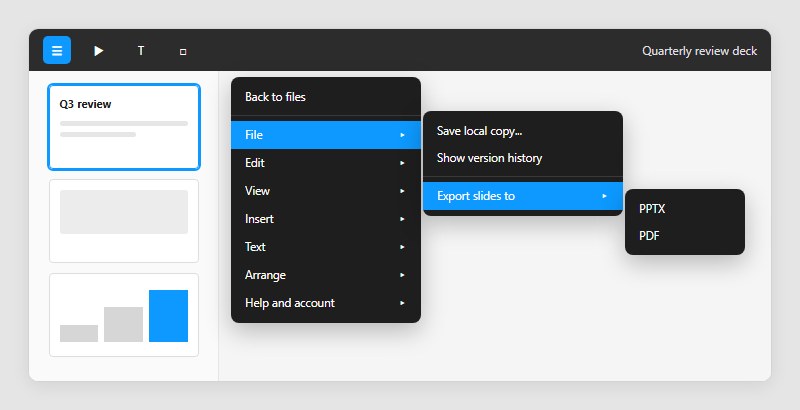
Every Figma product saves a local copy through the same File menu, each with its own extension, .jam for FigJam, .deck for Slides, .buzz for Buzz, .site for Sites and .make for Make (Figma Help Center, as of October 2026).
| Product | Local copy | Other output |
|---|---|---|
| FigJam | .jam | PNG, JPG, PDF, CSV |
| Figma Slides | .deck | PPTX, PDF |
| Figma Buzz | .buzz | Video exports (MP4, GIF) |
| Figma Sites | .site | PNG, JPG, SVG, PDF per element |
| Figma Make | .make | Code as a .zip |
In FigJam, export needs can edit access, which is stricter than the can view access Figma Design requires. SVG export is not supported, so copy the objects into a Figma Design file and export the SVG from there.
Figma Slides offers PPTX or PDF under File, then Export slides to. PDF adds a color profile choice (sRGB or Display P3) and a quality setting.
PPTX export has documented losses. Fonts missing in PowerPoint fall back to its default, live interactions and code blocks become static images, and gradient fills turn solid.
The Slides documentation also splits the save behavior by client. The browser sends the file to its download location, while the desktop app prompts you to rename it and pick a folder.
With Figma Buzz, the video options are the ones to check. Community threads from March and May 2026 reported MP4 exports failing or stalling. Figma support tied the March failures to an engineering bug it fixed, and said stalled exports are usually linked to a video upload that had not finished. A September 2026 post reported the GIF option missing, and Figma replied that it had no record of an intentional removal and asked for a support ticket.
A Figma community support reply from June 2025 states that a whole Figma Sites project cannot be exported as a zip. Figma’s help center adds that exporting the site’s code for outside publishing is not currently possible.
For Figma Make, a May 2025 community support reply says a local copy opens only in Figma, and that a Make file cannot be brought back into Figma Design. The Code tab’s Download code button produces a .zip of every file, and viewing or downloading code needs a Full or Dev seat (Figma Help Center).
Several 2026 forum threads report a “Failed to download code files” error. Figma staff there ask for the Make file itself before they can diagnose it.
Figma File Download FAQ
Is it free to download a Figma file?
Yes for the local copy. Save local copy is available on any plan, including the free Starter plan (Figma Help Center, as of October 2026).
The paid parts are narrower. Dev Mode export needs a Full or Dev seat, and restricting viewer downloads needs a paid plan.
Can I download a Figma file from the mobile app?
Not as of the latest Figma staff reply on record (May 2024), which treated mobile export as a feature request with no commitment attached.
Do the download from the web or desktop app.
Can I open a .fig file without Figma?
Not reliably. The format is proprietary, and Figma advises against third-party tools that read it.
The supported route is dragging the file into the file browser of any Figma account, where it opens as a new file.
Why does Figma download a ZIP instead of a single file?
In the browser, Figma bundles an export into a ZIP when you export several assets at once or when a layer, frame or page name contains a slash, because Figma reads a slash as a folder. A 2021 forum answer adds that the desktop app creates a folder instead of an archive.
Rename the layer to remove the slash, or export one layer at a time. Users in a 2022 forum thread also cured stray ZIPs by removing a slash from the page name.
How do I download a file from Figma Community?
Community files are not downloaded directly. Click Open in Figma (or Open in FigJam) on the file’s page, choose an account, and a copy lands in your drafts with (Community) added to the name.
You need a Figma account, and free and paid files carry different licensing terms, so check the license before reusing one.
Keeping a Figma File Download Usable as a Backup
A Figma file download should repeat at least every 30 days on a Starter plan, because Starter teams can open only the last 30 days of a file’s version history (Figma Help Center, as of October 2026).
Professional and Education teams can open the entire history, so on those plans a local copy guards against deletion rather than rollback. Figma staff said in April 2026 that upgrading unlocks the older versions, since Figma saves the full history and only limits what Starter users can see.
Figma community support said in July 2024 that Figma does not permanently delete a file unless it is removed from the Deleted tab or the project holding it is deleted. A deleted Professional team can be restored by its owner or an admin within 28 days, after which its files are permanently deleted (September 2024).
Start with the Starter-plan files, since they show the least history. Put the save date in every file name so copies are easy to tell apart, and reopen one copy in Figma after each pass to confirm the .fig file still imports.
The cost is one manual pass per file each month. Teams weighing an upgrade can compare how the free and Professional plans differ.

Many of his resources are available on various design marketplaces. Over the years, he's worked with a range of clients and contributed to design publications like Designmodo, WebDesignerDepot, and Speckyboy, Slider Revolution among others.
- How to Download Figma Files Fast and Free - October 30, 2026
- Figma Keyboard Shortcuts That Will 10x Your Speed - October 25, 2026
- What is Backend in Web Development? - September 13, 2026