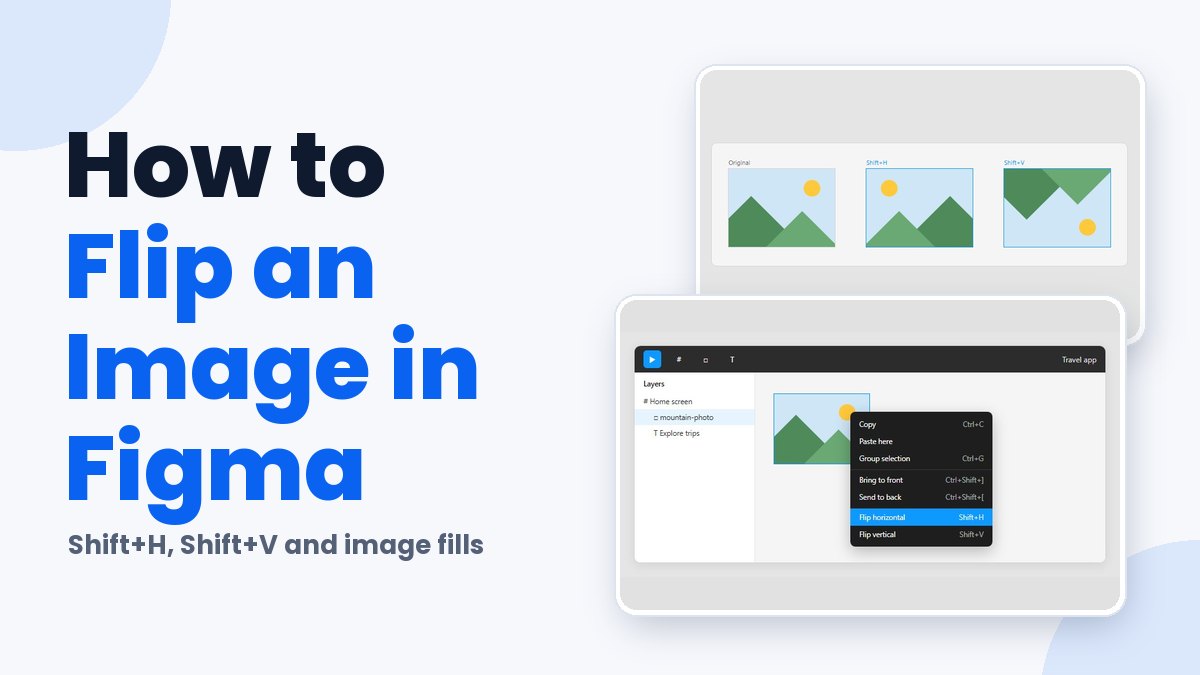
Shift+H flips the selected layer left to right in Figma, and Shift+V flips it top to bottom. The keys are the same on Mac and Windows. If you’d rather click, right-click the layer and pick Flip horizontal or Flip vertical from the menu.
Figma saves a flip as a matrix CSS transform and not as a rotation, according to the Figma Help Center. One catch is worth knowing up front. An image used as a fill has no flip control of its own, so the shape holding it is what flips.
How to flip an image in Figma
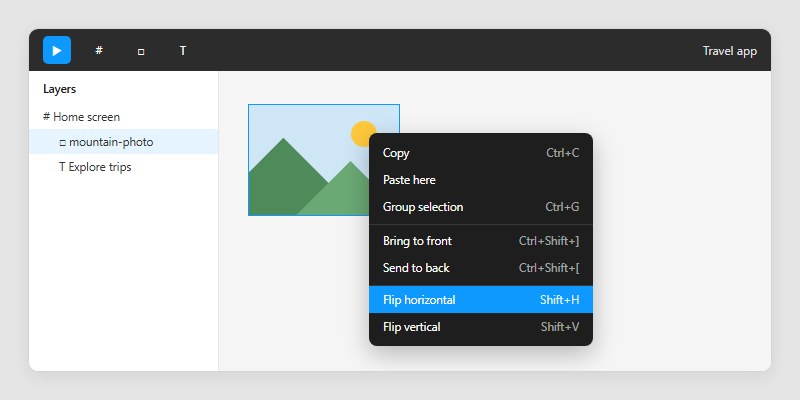
Select the image, then use the right-click menu or the keys. The long version is below.
- Click the image on the canvas, or pick its layer in the Layers panel.
- Right-click the selection to open the context menu.
- Choose Flip horizontal to mirror left to right, or Flip vertical to mirror top to bottom.
- Or skip steps 2 and 3 and press Shift+H or Shift+V while the image is selected.
- Look at the image next to the layers around it, because a flip mirrors the layer right where it sits.
Flipping works on all plans but requires edit access to the file, according to the Figma Help Center. If the shortcut does nothing, check your access level first.
When the flipped image lands slightly off, nudge it with the arrow keys. The default nudge is 1 point, or 10 points while holding Shift (Figma Help Center).
What are the Figma flip shortcuts on Mac, Windows and FigJam?
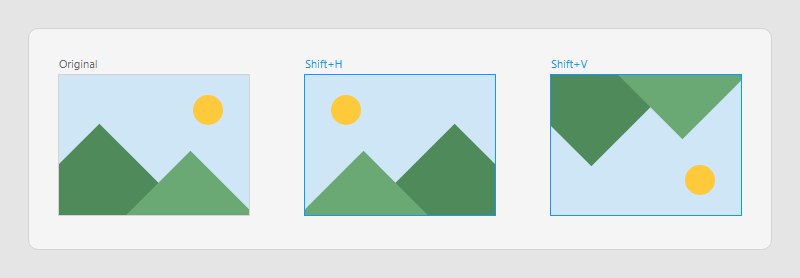
Horizontal flips use Shift+H and vertical flips use Shift+V (Figma Help Center). There is no separate Mac or Windows version. That’s a bit unusual, since the layer-order shortcuts on the same Help Center page do split into Command and Ctrl versions.
FigJam takes the same two keys, and it has the right-click menu too (FigJam Help Center).
One tutorial claims that Cmd+Shift+H or Ctrl+Shift+H flips an object horizontally. It doesn’t. That combination toggles layer visibility, so pressing it hides the image.
Have you seen the latest Figma statistics?
Discover comprehensive Figma statistics including revenue growth, market share, user demographics, and funding data.
Check them out →FigJam also has a mouse route. Dragging a resize handle across a shape mirrors it along the axis you cross, per the FigJam Help Center.
Both flips need only Shift, which makes them easy to remember next to the rest of the Figma keyboard shortcuts.
Which flip method should you use?
Use the keyboard shortcut for repeat flips, and the right-click menu on the days the keys slip your mind.
| Method | Where it is documented | Verdict |
|---|---|---|
| Keyboard shortcut | Figma and FigJam Help Center | Fastest for repeat flips |
| Right-click menu | Figma and FigJam Help Center | Best when you forget the keys |
| Design panel icon | Third-party tutorials only | Check your own panel first |
| Negative width or height | Third-party tutorials only | Skip it |
Tutorials can’t agree on where the Design panel flip icons live. They point to the Position section, the Transform section, the Constraints section and the top toolbar, depending on who you ask.
Figma’s Help Center article on alignment, rotation, position and dimensions documents only the right-click menu and the two shortcuts. So the icons are the method to learn last, if at all.
A few third-party pages also suggest typing a negative width or height after scaling a layer in Figma. The Help Center doesn’t document that trick, which is reason enough to skip it when two documented commands already exist.
My advice is to stick with whatever the Help Center lists, then move to the shortcut once your hand knows it.
How does a flip differ from rotating an image 180 degrees?
A horizontal flip swaps left and right while the top stays on top. A vertical flip swaps top and bottom and leaves the left side alone. Rotating 180 degrees just turns the image around its center, and nothing in it mirrors.
Apply both flips to one image and the result matches a 180 degree rotation, which is why people mix the two up.
Reach for rotating a layer in Figma when the orientation has to change but the picture shouldn’t mirror.
Figma stores the two operations differently. Flips use the matrix CSS transform and rotation uses the rotate CSS transform, according to the Figma Help Center.
Once a layer has been flipped, Figma keeps the matrix transform even if you rotate the layer later (Help Center). The CSS values show in Dev Mode, so that’s where to go to tell a flip from a rotation.
Figma Community Forum answers don’t agree on how a flip looks in the Design panel. One reply says a horizontal flip reads as 180 degrees of rotation, while another says a flipped frame shows no rotation at all.
Neither claim appears in the Help Center, so the rotation field is an unreliable test.
Figma treats an image as a fill type (Figma Help Center), and its developer documentation notes that there are no separate image nodes. A flip gets stored as a layer transform instead of a change to the image, so it’s non-destructive.
What can you flip besides a single image layer?
Groups, frames, components, shapes and text flip with the same two commands as an image layer. The Help Center’s transform instructions cover layers, frames, components, groups and selections alike.
Groups and frames
Flip a group or frame and the whole container mirrors, children included.
To flip one child only, select the image in the Layers panel, or ungroup the layers first so nothing else flips with it.
Images placed as fills
An image inside a shape or frame is a fill, and the fill has no flip control of its own.
The image options offer four fill modes (Fill, Fit, Crop and Tile) and a rotation control that turns the fill in 90 degree steps, according to Figma’s Plugin API documentation for ImagePaint.
Flip the parent shape and the fill mirrors with it. The cost is that any other fills on the same layer mirror too.
Components and auto layout
Flipping a main component flips every instance made from it, according to a Figma Community Forum thread on variants that appeared mirrored.
That thread’s fix is to edit the main component and flip its contents, not the container.
If instances look mirrored, a flipped main component is the likely cause. The same thread links it to layers that sit at an unexpected position. Auto layout frames also handle alignment and dimensions differently from standard layers (Figma Help Center), which adds to the confusion.
Check the transform in Dev Mode before rebuilding anything.
Why is the flip not working, and when does it not apply?
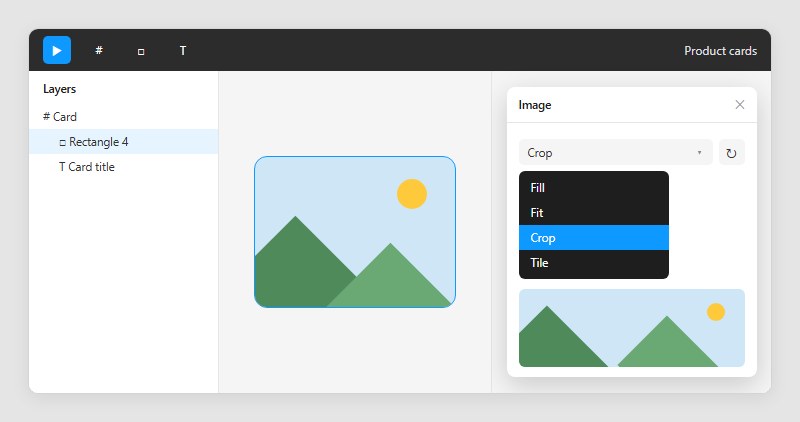
A flip stops giving the result you expect when the image is a fill. Shift+H and Shift+V mirror the whole layer, and Figma has no flip for the fill alone.
The Figma Community Forum shows how long that gap has stayed open.
- In July 2022 a member requested a flip for image fills, and the thread auto-closed in October 2022.
- In May 2024 a Figma staff member reopened it, merged a second request and agreed a flip option would be handy.
- In October 2025 another member added support to the same thread.
- In May 2026 a separate request asked for the control in image properties, because mirroring an image inside a component’s card currently means flipping the whole card.
As of that May 2026 request, the forum shows no native control. The in-Figma route is still flipping the layer that holds the fill, or the Crop-mode drag workaround described below.
Flipping the parent shape is quick, since it takes one shortcut and the image stays editable in Figma. The downside is that everything else on that layer mirrors, and a flipped component container flips every instance.
Mirroring the image outside Figma and re-importing it changes only the image, so layout and constraints stay untouched. The May 2026 poster says the round trip adds friction and slows iteration, though.
The 2022 poster’s workaround was to switch the fill to Crop mode and drag an edge across the image until it flips. They called it cumbersome and imprecise.
Selecting a parent group or frame flips the container, not the image, and a flipped main component passes the mirror to every instance. Text inside the selection mirrors as well.
Flip the parent shape unless that shape lives in a shared component. In that case, mirror the image outside Figma.
Common Questions About Flipping an Image in Figma
Can you flip multiple images at once in Figma?
Yes. Select every image, then press Shift+H or Shift+V, because the Help Center describes the flip as applying to a selection.
It doesn’t say whether each image mirrors in place or around the selection’s shared center, so check positions afterwards.
Can you flip an image in the Figma mobile app?
No, not in design files. A Figma Community Forum answer from January 2024 confirms the mobile app cannot edit them, and a July 2025 reply calls the app view only for design files.
FigJam files are editable in the app, but the sources don’t list flipping among its tools.
How do you undo a flip in Figma?
Press Cmd+Z on Mac or Ctrl+Z on Windows, the shortcut the Help Center lists for undoing layer changes.
Pressing the same flip shortcut a second time also restores the original orientation, and there’s a separate walkthrough of undoing changes in Figma.
Does flipping a text layer mirror the letters?
Yes, in Figma Design a flipped text layer reads backwards, so keep text out of the selection when you flip an image.
FigJam differs for shapes flipped by dragging a resize handle across them, because the text on the shape stays readable (FigJam Help Center).
What to Check After Flipping an Image in Figma
Start with the transform in Dev Mode and confirm it sits on the layer you meant to flip. Then look at every instance of any component that holds the image. Text legibility and spacing around the image come last, since fixing the transform or an instance moves the layout again.
Flipping the layer carries a trade-off. The mirror becomes part of that layer’s transform, so anyone who rotates or duplicates it later inherits the flip.
This advice stands as of October 2026. A native flip for image fills, requested on the Figma Community Forum since July 2022, would remove the need to flip the parent shape.
Once the checks pass, downloading the flipped image from Figma is the natural next step.

Many of his resources are available on various design marketplaces. Over the years, he's worked with a range of clients and contributed to design publications like Designmodo, WebDesignerDepot, and Speckyboy, Slider Revolution among others.
- How to Flip an Image in Figma Quickly? - November 18, 2026
- How to Comment in Figma Like a Pro - November 16, 2026
- How to Make a Pie Chart in Figma Without Plugins - November 14, 2026