Figma Tutorials and Templates
Figma tutorials for the job you are trying to get done. There are 66 step-by-step guides here, from changing a font to handing a file to a developer, plus 15 collections of free Figma templates and mockups.
New to Figma? Start with what Figma is used for and how to learn Figma, then the getting-started guides below. If you already use it, jump to a section and pick the task.
Getting started with Figma
What Figma is for, which plan you need, and the account and interface settings people ask about in their first week.
| Action | Mac | Windows |
|---|---|---|
| Undo / redo | Cmd+Z / Cmd+Shift+Z | Ctrl+Z / Ctrl+Shift+Z |
| Group / ungroup | Cmd+G / Cmd+Shift+G | Ctrl+G / Ctrl+Shift+G |
| Frame tool | F | F |
| Zoom to fit | Shift+1 | Shift+1 |
| Add auto layout | Shift+A | Shift+A |
| Create component | Cmd+Option+K | Ctrl+Alt+K |
| Italic / underline | Cmd+I / Cmd+U | Ctrl+I / Ctrl+U |
| Toggle Dev Mode | Shift+D | Shift+D |
The full list is in Figma keyboard shortcuts.
- What is Figma used for? UI design, prototyping, whiteboarding and handoff, with real examples of each.
- How to learn Figma The interface, auto layout, components and prototyping, and which learning path to pick.
- Figma Free vs Professional File limits, shared libraries and version history compared, so you know when to pay.
- Figma keyboard shortcuts The shortcuts for selecting, layers, frames, components, text and the pen tool.
- How to change Figma to dark mode Switch the interface theme in the desktop app and in the browser.
- How to copy Figma files to another account Duplicate, transfer or export a file to another account, and what carries over.
- How to cancel a Figma subscription Where the billing settings are and what happens to your files after you downgrade.
- Figma statistics Revenue, valuation, user base and market share numbers.
Figma text and typography tutorials
Fonts, text styling and the text effects Figma has no single button for.
- How to add fonts to Figma Install local fonts, use Google Fonts, and fix fonts that show as missing.
- How to add Adobe Fonts to Figma Activate Adobe Fonts through Creative Cloud and use them in your files.
- How to edit text in Figma Text boxes, auto width vs fixed size, and editing text inside components.
- How to italicize in Figma The italic shortcut, and why the option disappears for some fonts.
- How to underline text in Figma Underline with the shortcut or the text panel, and change its style and thickness.
- How to superscript in Figma Where the superscript option is, and how to build it manually when you need to.
- How to curve text in Figma Bend text along an arc, the plugin route and the manual one.
- How to type on a path in Figma Set text along a custom vector path for badges, logos and labels.
Shapes, layout and editing in Figma
The canvas basics: frames, grids, and the shape and image edits you do in every file.
- How to undo in Figma Undo and redo shortcuts, and how to restore an older version from history.
- How to zoom in Figma Zoom to fit, to selection and to 100%, with the trackpad and the keyboard.
- How to make a frame in Figma Frames vs groups, device presets and nesting frames.
- How to make a grid in Figma Add layout guides to a frame, choose columns and gutters, and use grid auto layout.
- How to hide the grid in Figma Turn layout grids and the pixel grid on and off.
- How to ungroup in Figma Ungroup by shortcut, and what happens to nested and boolean groups.
- How to cut a shape in Figma Subtract, intersect and exclude with boolean operations, or cut paths directly.
- How to round corners in Figma Corner radius per corner, corner smoothing, and radius variables.
- How to rotate in Figma Rotate by dragging, by exact degrees, and around a custom point.
- How to scale in Figma The scale tool vs resizing, and keeping strokes and effects in proportion.
- How to crop in Figma Crop images with the crop fill mode, or crop any layer with a frame.
- How to mask in Figma Mask images and multiple layers, and when clip content is the better choice.
- How to blur in Figma Layer blur vs background blur, and frosted-glass effects.
- How to make a gradient in Figma Linear, radial, angular and diamond gradients, and editing color stops.
- How to make a table in Figma Build a data table with auto layout so rows and columns resize together.
Components, variables and design systems
Reusable parts and the systems built from them. Start with components, then variants and auto layout.
- How to make components in Figma Create a main component and place instances of it.
- How to use components in Figma Instances, overrides, nested components and when to detach.
- How to edit a component in Figma Change the main component and push the update to every instance.
- How to remove a component in Figma Detach an instance, or delete or restore a main component.
- How to create variants in Figma Group button states and sizes into one component set with properties.
- How to use auto layout in Figma Direction, padding, spacing, hug vs fill, and nesting auto layout frames.
- Figma components best practices Naming, structure and property rules that keep a library usable as it grows.
- Figma variables guide Color, number and string variables, modes, and using them in real projects.
- How to create a design system in Figma Tokens, styles, components and documentation, in the order to build them.
- Figma design system tutorial A worked example that goes from an empty file to a full system.
- Figma UI kits A roundup of Figma UI kits to start projects from.
Figma prototyping tutorials
Turn static frames into something people can click, then share it.
- How to prototype in Figma Connections, triggers, animations and the presentation view.
- How to link pages in Figma Link frames and flows so a prototype moves between screens.
- How to make Figma interactive Interactive components, hover states and conditional logic.
- How to animate in Figma Smart animate, transitions and easing for motion in prototypes.
- How to make a carousel in Figma A swipeable carousel with horizontal scrolling or smart animate.
- Fixed position when scrolling in Figma Keep headers and nav bars in place while the rest of the frame scrolls.
- How to share a Figma prototype without an account Link settings that let clients view a prototype without signing up.
- How to use Figma for client presentations Present designs and prototypes to clients and collect feedback.
Export, Dev Mode and handoff
Getting designs out of Figma: files, images, code and the developer workflow.
- How to export Figma to PDF Export one frame or a multi-page PDF, and get a print-ready file.
- How to export a GIF from Figma Turn an animated prototype into a GIF, and the tools that help.
- How to download an image from Figma Export PNG, JPG and SVG at the right scale, with transparent backgrounds and batch export.
- How to export Figma to HTML What design-to-HTML plugins produce, and when hand-coding is still faster.
- How to turn Figma into code A developer workflow from inspecting a design to production CSS.
- Figma Dev Mode What Dev Mode shows developers, what it costs, and how to use it day to day.
- How to get out of Dev Mode in Figma Switch back to design mode with the toggle or the shortcut.
- Figma developer handoff Prepare files so developers can build them without guessing.
- How to hide comments in Figma Hide comment pins from the canvas, and show them again.
- How to chat in Figma Cursor chat, comments and audio for real-time collaboration.
Design projects
Full walkthroughs that put the techniques above together on a real deliverable.
- How to design a website in Figma From wireframe to a responsive desktop and mobile layout.
- How to design an app in Figma Screens, flows and components for a mobile app.
- How to wireframe in Figma Low-fidelity wireframes that are quick to change.
- Figma wireframe examples Wireframe kits and examples to copy and adapt.
- How to make a button in Figma A button component with auto layout, states and variants.
- Figma login page templates Login and sign-up screen designs to start from.
Figma templates and mockups
Collections of free and paid community files, grouped by what you are building.
- Figma website templates Full website templates for agencies, products and blogs.
- Figma landing page templates Single-page layouts for launches and campaigns.
- Figma SaaS templates Marketing sites and dashboards for software products.
- Figma ecommerce templates Store layouts with product, cart and checkout pages.
- Figma portfolio templates Portfolio sites for designers and developers.
- Figma personal website templates Personal and creative sites with a single owner.
- Figma resume templates Resume and CV layouts you can edit and export to PDF.
- Figma presentation templates Slide deck templates for talks and client work.
- Figma pitch deck templates Investor decks for startups.
- Figma social media templates Post and story templates for several platforms.
- Figma Instagram templates Feed posts, stories and carousels sized for Instagram.
- Figma user persona templates Persona layouts for UX research.
- Figma icons Icon sets to download and use in your designs.
- Figma iPhone mockups Device frames for presenting app screens.
- Figma MacBook mockups Laptop mockups for showing websites and dashboards.
Which Figma tutorial should you start with?
Start with the getting started group if you have never opened Figma, with components and auto layout if you already draw screens, and with variables and Dev Mode handoff if you build for a team. The job decides the entry point, not a skill label.
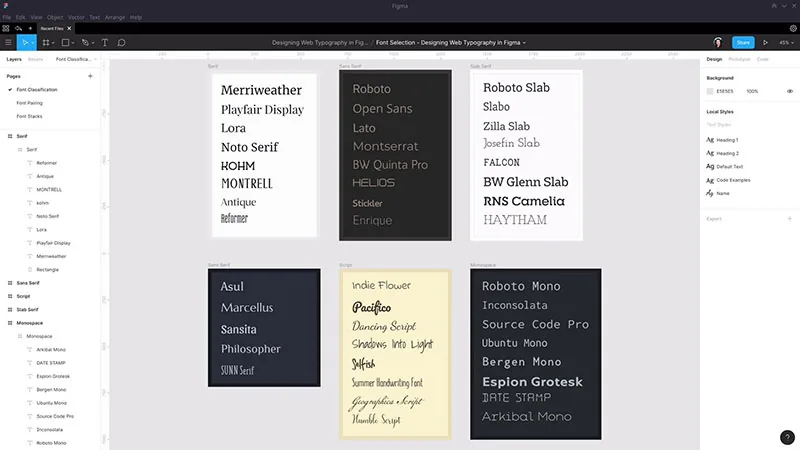
The 8 sections on this page hold 66 step-by-step guides and 15 template collections, 81 linked pages in total.
Key figures for this collection (counted on this page, October 2026):
- 66 step-by-step guides across 7 task groups
- 15 guides in shapes, layout and editing, the largest group
- 6 guides in design projects, the smallest group
- 15 template and mockup collections
- 8 Mac and Windows shortcut pairs in the quick-reference table
Beginner path
Five guides cover the first week.
- Read what Figma is used for to see where design, prototyping and handoff fit
- Follow how to learn Figma to pick a learning path
- Draw your first frame
- Type and style text with how to edit text in Figma
- Learn how to undo in Figma, including restoring an older version
Frames come first because every other tool works inside one. A frame clips its content and takes layout settings, which a group does not.
Prefer video? Figma's own Figma Design for beginners 2025 course covers the same first steps in 13 short lessons, recorded in the current UI3 interface.
Intermediate path
- Auto layout: how to use auto layout in Figma sets direction, padding and spacing so a frame resizes with its content
- Components: how to make components in Figma turns a repeated element into one main component with instances
- Variants: how to create variants in Figma groups button states and sizes into one component set
- Prototype links: how to link pages in Figma connects frames into a flow someone can click through
Do auto layout before components. A component built without it breaks the first time its label gets longer.
The mask, gradient and blur guides fit anywhere in this stage, whenever a screen calls for them.
Advanced path
Advanced guides assume components already work. The Figma variables guide covers color, number and string variables with modes, and the Figma design system tutorial goes from an empty file to a full system.
- Motion and logic: interactive components and Smart Animate
- Handoff: Figma Dev Mode and developer handoff preparation
Skip this stage if you work alone on small files. Variables and shared libraries pay off once two or more people draw from the same system.
Which Figma plan do these tutorials require?
The free Starter plan covers almost every tutorial on this page, because auto layout, components and Community file duplication work on every plan, according to the Figma Help Center. Three features sit behind a paid plan: shared libraries, version history beyond 30 days, and Dev Mode.
As of October 2026, the Starter plan overview lists unlimited drafts but only 3 shared Figma Design and Sites files, plus 3 FigJam files and 3 Slides files, in a single team folder.
Drafts sit outside that cap. Practice files for these tutorials fit on Starter, and the limit only bites once a project moves into the team folder.
Each paid feature maps to a group of guides:
- Shared libraries: publish components, styles and variables across files, which is where the design system guides end up
- Version history: Starter members see 30 days, while Professional and Education teams can open a file's entire history (Figma Help Center)
- Dev Mode: anyone with a Full or Dev seat can use it, and a free View seat gets basic inspection only (measurements, copied code, asset export)
Downgrading hides older versions again rather than deleting them, according to Figma staff replies on its community forum. The how to cancel a Figma subscription guide covers the billing settings.
Stay on Starter until a client needs a fourth shared file or a version older than a month. The tiers are compared in more detail in Figma Free vs Professional.
How do Figma shortcuts differ on Mac and Windows?
Cmd on Mac becomes Ctrl on Windows, and Option becomes Alt. The rest of the key combination stays the same.
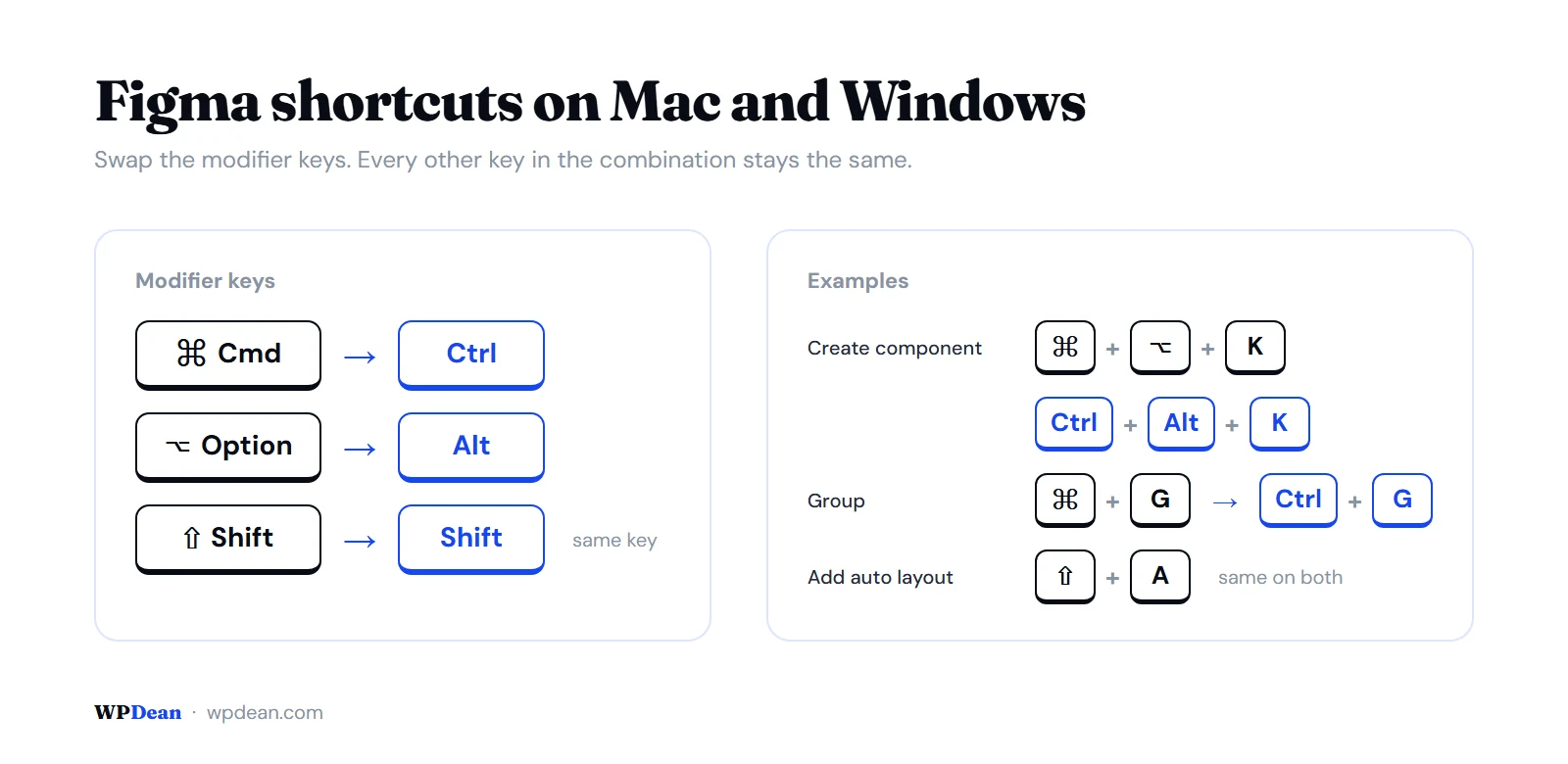
Shortcuts that skip Cmd, Ctrl, Option and Alt are identical on both systems:
- Frame tool: F
- Zoom to fit: Shift+1
- Add auto layout: Shift+A
- Toggle Dev Mode: Shift+D
Anything built on Cmd or Ctrl changes. Create component is Cmd+Option+K on Mac and Ctrl+Alt+K on Windows, and group is Cmd+G against Ctrl+G, as covered in the guides on making components and ungrouping.
Keyboard layout is the other source of mismatches. Figma's default shortcuts follow a US QWERTY keyboard, and the Help Center describes a Layout setting in the keyboard shortcuts panel that remaps them for layouts such as French AZERTY, German QWERTZ and U.K.
The full panel opens from Help and resources, then Keyboard shortcuts. The Figma keyboard shortcuts reference lists the rest for selecting, layers, frames, text and the pen tool.
Where do free and paid Figma templates come from?
Most come from Figma Community, where the creator marks each file as free or paid. Free files are published under a CC BY 4.0 license, so reusing one means crediting its creator (Figma Help Center).
Duplicating a file needs a Figma account on any plan. The copy lands in your drafts with (Community) added to its name, and it carries no version history, comments or permissions from the original.
Later updates by the creator do not reach your copy, so you duplicate the new version again. One catch: duplicating does not work while you browse Community as a team or organization admin, so switch to your own profile first.
Independent kit libraries are the secondary source. The Figma UI kits roundup collects them, and the Figma website templates and Figma landing page templates collections cover finished layouts.
Free templates
Pros:
- No cost, and copies sit in drafts, which have no file cap on Starter
- Covers wireframes, UI kits, asset libraries and design systems
- Fully editable after duplication
Cons:
- CC BY 4.0 attribution applies
- Structure varies by file, so open the components page before committing
For learning and first drafts, free files are enough.
Paid templates
Paid files fall under the Community Paid Resource License, and creators cannot offer commercial files under other terms, per Figma's licensing page. A purchase lets you share the file contents with up to five editors.
In favor: one fixed license, so no per-creator terms to check.
Against: the file can only be opened from the account that bought it, and Figma says it is not approving new creators to sell paid files on Community at this time.
Start free. Pay only when a kit documents its components and variants and the license covers your use.
Which template type fits your project?
Match the template to the deliverable. Product sites and apps start from website, landing page, SaaS or ecommerce files, while resumes, decks and social posts each have a format of their own, and mockups come last, after the design is finished.
Template types by project
Three terms get mixed up. A template is a finished layout you adapt, a UI kit is a library of components you build with, and a mockup places a screen inside a device frame.
| Project | Start here | Best for |
|---|---|---|
| Product sites | Website, landing page, SaaS and ecommerce templates | Agencies, launches, software products, stores |
| Personal brand | Portfolio, personal website and resume templates | Designers, developers, job applications |
| Presentations | Presentation and pitch deck templates | Talks, client work, investor meetings |
| Social and research | Social media, Instagram and user persona templates | Campaign posts, stories, UX research |
| Assets | Figma icons | Icon sets to drop into any layout |
Resumes and decks usually leave Figma as PDFs, so their frame structure matters more than their styling.
When two types fit, pick the one with only the pages you need. A landing page template beats a full website template for a single launch.
iPhone and MacBook mockups
iPhone mockups: app screens inside a phone frame, built for case studies and portfolio pages. The Figma iPhone mockups collection has the device frames.
MacBook mockups: websites and dashboards inside a laptop frame. Start with the Figma MacBook mockups collection.
Figma also ships its own frame presets for common desktop, mobile and tablet sizes, found in the right sidebar once the Frame tool is active (Figma Help Center).
In prototypes the preset picks the device: use the iPhone 15 Pro Max preset and Figma selects that device too. Presentation view offers every device type, while the inline preview lists only phone, watch and tablet frames, according to Figma's prototype device settings.
Use a mockup after the design is final. Designing inside one makes every edit harder.
How to start from a Figma template without breaking it
Six steps keep a template intact: duplicate, fix fonts, edit components, swap content, test the layout, export.
- Duplicate the file and rename the copy, so the original stays untouched.
- Open the missing fonts modal from the left sidebar and fix every flagged font before editing any text.
- Change the main component instead of each instance, so the update reaches every copy.
- Replace placeholder text, images and colors, using styles and variables wherever the file defines them.
- Paste the longest real headline or label into each auto layout frame to test the layout.
- Export from top-level frames: PDF for resumes and decks, PNG or JPG for posts.
Why fonts go missing:
- The font is not installed on your computer
- A collaborator uses a different version of the same font
- A style is absent from the download, such as Bold or Extra Light
Each style is its own file, so using Inter Regular, Inter Bold and Inter Extra Light takes three font files, according to the Figma Help Center.
The fixes are to add the font, use shared fonts (Organization and Enterprise plans only), or replace it from the modal. Replacing is file-wide: the Help Center says all text objects in the file update to the new fonts.
The guides on adding fonts and Adobe Fonts cover installation.
Detach with care: an instance accepts overrides to text, fill, stroke and size, but not added, removed or reordered layers. Detaching cuts the link to the main component for good.
Sources disagree on who can detach. Figma's Help Center lists detaching as available on any paid plan, a Figma staff member who tested a Starter team in 2024 found it still worked, and a Starter user reported in August 2025 that the option was missing.
Plan around it as a paid feature, and read how to edit a component in Figma and how to use components in Figma before touching a template's structure.
For PDF export, File, then Export frames to PDF, gives one page per frame only when the frames sit at the top level of the page.
A Figma Community thread from April 2025 showed that two frames nested inside a parent frame land on a single page, and that moving them out produces two pages. The export Figma to PDF and download an image from Figma guides cover the settings.
When do Figma tutorials and templates fall short?
They fall short in 4 places: license terms that differ by file, tutorials written for an older interface, templates published unchanged, and products that need a design system of their own.
Licenses vary: beyond the baseline license on free files, Figma's Help Center says creators may add other license types alongside it.
Figma also says it cannot track files outside published remixes to check attribution. Reading each file's license before client work is your job.
Tutorials age with the interface. Two dated changes break older guides:
- Dev Mode, January 31, 2024: it left free beta and began requiring a paid seat (Figma Help Center), so a guide that calls it free is out of date
- UI3, October 10, 2024: the redesigned interface reached all users after its Config 2024 debut, so screenshots older than that show a different layout
When a guide's screenshots do not match your screen, check its date against these two changes.
Unchanged templates look like every other copy of them. Swap the fonts, colors and imagery before anything leaves the file.
Kits also stop short once a product has its own tokens and components. At that point, build the system with the Figma design system tutorial and the Figma components best practices guide rather than stretching a template.