Your photo looks razor sharp on your phone, then prints blurry and pixelated. The gap between those two moments has a name.
Understanding PPI (pixels per inch) is what separates a crisp business card from a fuzzy one, and a clean website image from a slow, oversized mess.
Designers and photographers lean on this one number every day, yet most people mix it up with DPI or trust the old 72 versus 300 myth.
This guide clears it up. You will learn what pixel density actually measures, how to calculate it, and the target resolution for print, screens, and large format.
Expect real device figures, the DPI difference, and the mistakes that quietly wreck image quality.
What Is PPI (Pixels Per Inch)?
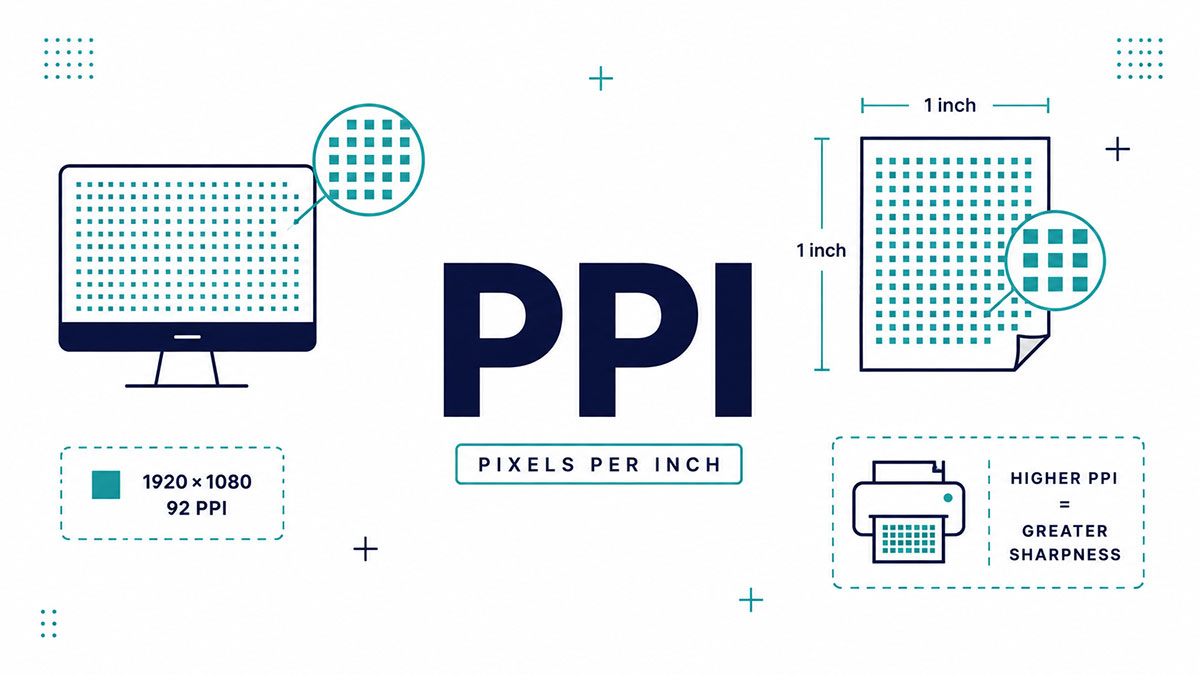
PPI (pixels per inch) measures how many pixels fit into one linear inch of a screen or image. Higher PPI packs more pixels into the same space, which produces sharper detail, smoother edges, and text that reads cleanly without visible blocky steps.
The term describes density, not total count. A phone and a billboard can share the same pixel dimensions, yet the phone looks razor sharp because those pixels are crammed into a tiny area.
Density is what your eye actually reacts to. Once individual pixels shrink below what you can resolve at normal viewing distance, the image stops looking like a grid and starts looking like a photo.
Two things set PPI: the number of pixels, and the physical size they spread across. Change either one and the density shifts.
How Do You Calculate PPI?
PPI is calculated by dividing the diagonal pixel count of a display by its diagonal size in inches. For images sent to print, the formula simplifies to pixel width divided by the printed width in inches. Both give you density.
Screen formula: take the square root of (horizontal pixels squared + vertical pixels squared), then divide by the diagonal in inches.
A 1920 x 1080 panel on a 15.6-inch laptop works out to roughly 141 PPI. Same math Apple, Dell, and every display maker runs before they spec a screen.
Print formula: a 3000-pixel-wide photo printed 10 inches wide lands at exactly 300 PPI. Stretch that same file to 20 inches and density drops to 150 PPI.
If you ever need to sanity-check the math, working out how many pixels sit in an inch at a given size is the fastest gut-check. A quick pixel-to-inches conversion handles the rest.
What Is the Difference Between PPI and DPI?
PPI counts pixels on a screen or in a digital image. DPI counts ink dots a printer lays on paper. People swap the terms constantly, but they describe two different physical things, and the confusion causes real print mistakes.
| Metric | Measures | Applies To | Made Of |
|---|---|---|---|
| PPI | Pixel density | Screens and digital images | Colored pixels |
| DPI | Dot density | Printed output | Ink or toner dots |
Here is the practical version. Your file has PPI. Your printer produces DPI. A printer often uses several ink dots to reproduce one pixel, so the two numbers rarely match one to one.
Photoshop labels its resolution field in PPI even though most people call it “DPI” out of habit. If the distinction still feels fuzzy, the breakdown of how DPI compares to PPI and a plain definition of dots per inch clear it up fast.
Why Does PPI Matter for Print Quality?
PPI determines whether a print looks crisp or pixelated. Paper reflects light and gets viewed up close, so it needs high density to hide the pixel grid. Screens emit light and forgive lower density, which is why print demands far more.
What Resolution Counts as Print Quality
The industry benchmark is 300 PPI at final print size. A 300 PPI print holds 90,000 dots per square inch, roughly 17 times the data of a 72 PPI file, according to CARDSandBANNERS.
That density is why the 300 PPI print standard stuck around for business cards, magazines, and photo books.
Why Low PPI Ruins Prints
Pixels start becoming visible to the naked eye around 150 PPI (Photo Cascadia). Below that, edges go jagged and fine text turns mushy.
- Business cards, brochures: viewed inches away, so 300 PPI or higher
- Posters: viewed from a few feet, 150 to 200 PPI holds up
- Color mode: convert files before printing, since screen RGB versus print CMYK shifts color
Does PPI Affect Images on the Web?
No. On screen, the PPI tag baked into a file changes nothing. Browsers and monitors read only pixel dimensions. A 1500 x 1000 image looks identical whether it is flagged 72 PPI or 3000 PPI.
The old “save web images at 72 PPI” rule is a myth. What actually controls sharpness and load time is the pixel count, full stop.
The number traces back to mid-1980s Macintosh screens, which ran 72 pixels per inch to match Apple’s 144 DPI ImageWriter printers (Photoshop Essentials). The habit outlived the hardware by 40 years.
For high-density screens, the real move is exporting at 2x pixel dimensions, not fiddling with the resolution flag. That legacy 72 DPI setting is safe to ignore for anything staying on a screen.
What PPI Do Modern Screens and Devices Use?
Modern screens range from about 100 PPI on budget monitors to over 3,000 PPI on VR headsets. Phones cluster around 400 to 500 PPI, laptops near 220, and desktop displays near 220 on premium panels.
PPI Across iPhone Generations
Apple set the pace here. The Retina benchmark was 300 PPI at 10 to 12 inches, and the iPhone 4 blew past it.
| Device | Release Year | PPI |
|---|---|---|
| iPhone 3GS | 2009 | 163 |
| iPhone 4 (first Retina display) | 2010 | 326 |
| iPhone X | 2017 | 458 |
| iPhone 12 mini | 2020 | 476 |
The iPhone 4 quadrupled the pixel count of the 3GS while keeping the same 3.5-inch screen (Wikipedia). Current models sit around 460 PPI.
Why Higher PPI Hits Diminishing Returns
Past a point, your eye cannot tell the difference. At normal phone distance, 460 PPI already exceeds what 20/20 vision resolves (ScreenResolutionDB), so Apple grows screen size instead of cramming in more density.
Distance is the hidden variable. A 5K Studio Display runs just 218 PPI yet looks flawless because you sit two feet back. The pixel density you need drops as viewing distance grows, which is also why screen resolution alone never tells the whole sharpness story. (The Apple Vision Pro, strapped to your face, pushes roughly 3,386 PPI per eye.)
What PPI Do You Need for Print, Web, and Large Format?
Target PPI depends entirely on viewing distance and output type. Close-viewed print needs 300 PPI, web needs only correct pixel dimensions, and large-format signage works fine at 20 to 100 PPI because nobody stands nose-to-billboard.
PPI Targets by Use Case
| Use Case | Recommended PPI | Why |
|---|---|---|
| Business cards, magazines | 300 | Viewed from a short distance, requiring fine detail |
| Large posters | 150–200 | Typically viewed from several feet away |
| Billboards | 20–100 | Designed to be viewed from long distances |
| Web and social media | Pixel dimensions only | Screens ignore the image’s PPI metadata |
By 2025 most smartphones cleared 300 PPI, spanning 260 to over 600 across the market (Wikipedia). So a photo built for print at 300 PPI already carries more than enough pixels for any screen it lands on.
One rule covers most work: design for the shortest viewing distance your image will face, then let bigger, farther outputs coast on the surplus.
How Do You Change PPI in Design Software?
You change PPI in the Image Size dialog of Photoshop, in Lightroom’s export panel, or in any raster editor’s resolution field. The resample toggle decides whether you only rescale the print size, or actually add and remove pixels from the file.
Changing PPI in Photoshop
Open Image > Image Size. The Resolution field shows the current pixels per inch.
Resample off: changing the PPI number only changes print size. Pixel count stays fixed, zero quality loss.
Resample on: Photoshop adds or drops pixels using Bicubic Smoother, Bicubic Sharper, or Preserve Details 2.0. This alters the actual file.
Nine times out of ten, if you are prepping a photo for a lab, you want resample off and you just set the print dimensions.
Setting Resolution in Lightroom and Others
Lightroom handles it at export, not on the develop screen. The Resolution box sits in the Export dialog under Image Sizing.
- Lightroom Classic: Export panel, set PPI plus long-edge dimensions
- Affinity Photo: Document > Resize Document
- GIMP: Image > Print Size
Same logic across all of them. The resolution value is just a label until you print.
AI Upscaling When You Need More Pixels
Photoshop 2026 folded Topaz Gigapixel and Topaz Bloom directly into its Generative Upscale feature, according to PhotoshopCAFE (November 2025).
Adobe’s Super Resolution inside Camera Raw doubles linear resolution, quadrupling the pixel count. Gigapixel pushes files up to roughly 56 megapixels.
These tools rebuild missing detail with machine learning instead of plain interpolation. Handy when a crop leaves you short, though they work best on already-sharp source files.
How Does PPI Relate to Megapixels and Camera Files?
Megapixels count the total pixels a camera captures. PPI decides how far those pixels stretch across paper. Divide the image’s pixel width by your target PPI, and you get the largest print that still holds crisp detail.
| Camera Resolution | Pixel Dimensions | Maximum Print Size at 300 PPI* |
|---|---|---|
| 12 MP | 4000 × 3000 px | 13 × 10 in |
| 24 MP | 6000 × 4000 px | 20 × 13.3 in |
| 50 MP | 8688 × 5792 px | 29 × 19.3 in |
One megapixel equals a million pixels. A 12 MP file lands at 4000 x 3000, which prints 13.3 by 10 inches at 300 PPI (Reolink). A 50 MP Canon EOS 5DS reaches a true 30 by 20 inch print, plenty for a coffee-table book (Digital Photography Live).
Megapixel count is not the whole story. A sharp 20 MP frame out-prints a soft, noisy 60 MP frame at the same size, since focus and lens quality set the real detail ceiling.
Watch the crop. Most cameras shoot at a 3:2 ratio while common print sizes do not match it, so an image’s aspect ratio often forces you to trim the sides before printing.
What Common PPI Mistakes Should You Avoid?
The three most common PPI mistakes are confusing PPI with DPI, forcing 300 PPI onto prints nobody views up close, and expecting upscaling software to invent detail the original file never captured.
Confusing PPI With DPI
PPI: the pixel density of your digital file.
DPI: the ink dots a printer physically lays down.
A single 200 PPI file can print at 300 DPI on one machine and 100 DPI on another. The software dialogs mislabel this constantly, which keeps the confusion alive.
Forcing 300 PPI on Everything
The 300 PPI benchmark only applies to prints viewed at arm’s length, like magazines and business cards.
In blind tests, viewers shown 110 PPI and 208 PPI prints at 33 x 20 inches could barely tell them apart, even from a foot away (Photography Icon). Wall art viewed from a few feet looks flawless at 150 PPI.
Sizing a canvas at a strict 300 PPI throws away most of the file and pushes you toward pointless upscaling.
Expecting Upscaling to Add Real Detail
Upscaling cannot recover detail that was never captured.
Topaz Gigapixel and Preserve Details 2.0 interpolate cleanly and make a soft enlargement look acceptable, but they will not turn a 12 MP file into a genuine 60 MP one. They synthesize plausible pixels, not real ones.
For logos and icons, skip raster upscaling entirely. Vector formats like SVG scale to any size with no pixel density to worry about.
FAQ on PPI
What does PPI stand for?
PPI stands for pixels per inch. It counts how many pixels sit in one linear inch of a screen or digital image, which sets how sharp that image looks at a given size.
Is PPI the same as DPI?
No. PPI measures pixel density in a file or on a screen. DPI measures ink dots a printer lays on paper. People swap the terms, but they describe two different physical things.
What is a good PPI for printing?
Aim for 300 PPI at final print size for anything viewed up close, like business cards, magazines, and photo books. Below 150 PPI, pixels start showing and edges turn jagged.
Does PPI matter for web images?
No. Browsers read only pixel dimensions, so the PPI tag baked into a file changes nothing on screen. A 72 PPI and a 300 PPI version display identically at the same pixel size.
How do I calculate PPI?
Take the square root of the horizontal pixels squared plus vertical pixels squared, then divide by the diagonal in inches. For print, divide pixel width by the printed width instead.
What PPI is the iPhone screen?
Current iPhones sit around 460 PPI. The original Retina iPhone 4 hit 326 PPI in 2010, and the iPhone 12 mini reached 476, the highest Apple has shipped.
Can I increase the PPI of an image?
Yes, through resampling in Photoshop or AI tools like Topaz Gigapixel. These add pixels by interpolation, but they cannot recover fine detail the original file never captured.
What PPI do I need for a large poster?
Posters viewed from a few feet look sharp at 150 to 200 PPI. Billboards drop to 20 to 100 PPI, since nobody stands nose to the print.
Why do my images look blurry when printed?
Usually the pixel count is too low for the print size, dropping density under 150 PPI. Enlarging a small file stretches its pixels, which produces soft, pixelated output on paper.
What is Retina display PPI?
Apple set the Retina benchmark at roughly 300 PPI viewed 10 to 12 inches away. At that pixel density, individual pixels become invisible to the eye at normal distance.
Conclusion
Once you know what PPI is, the whole print-versus-screen puzzle falls into place. Pixel density decides sharpness, and viewing distance decides how much density you actually need.
For paper viewed up close, 300 pixels per inch stays the safe target. For screens, the pixel dimensions carry the weight, not the resolution tag.
Remember the split between pixels and ink dots. A file has PPI. A printer produces DPI. Treating them as one number is where most quality problems start.
Match your resolution to the output and the distance, whether that is a business card, a monitor, or a billboard across the street.
Get the pixel count right at the source, and the sharp results follow everywhere else.

Many of his resources are available on various design marketplaces. Over the years, he's worked with a range of clients and contributed to design publications like Designmodo, WebDesignerDepot, and Speckyboy, Slider Revolution among others.
- How to Download Figma Files Fast and Free - October 30, 2026
- Figma Keyboard Shortcuts That Will 10x Your Speed - October 25, 2026
- What is Backend in Web Development? - September 13, 2026

