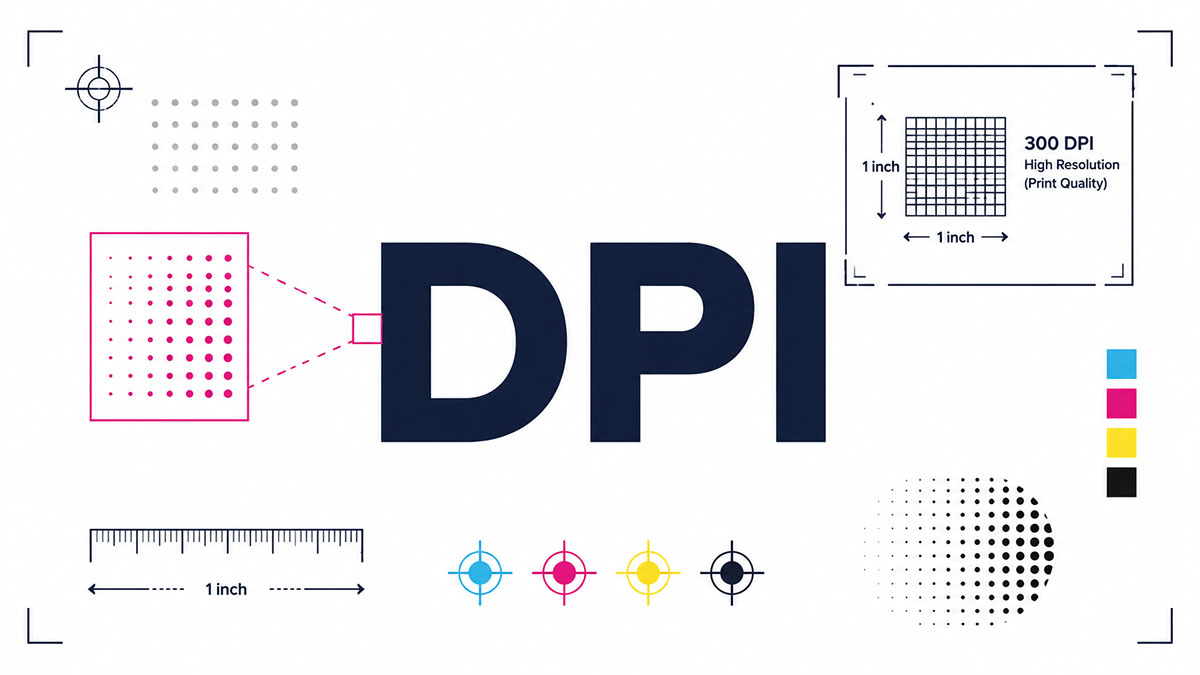
Print a photo and it looks blurry. Set your gaming mouse and the cursor flies off screen. Same three letters, two totally different headaches.
So what is DPI? It stands for dots per inch, a measure of how many dots pack into one inch, whether that is ink on paper or pixels your cursor travels.
Get the number wrong and you waste ink, blow up file sizes, or lose a headshot. Get it right and everything just works.
This guide breaks down how DPI works and where it actually matters:
- The split between DPI and PPI
- Print, scanning, and mouse settings
- Standard values and how to change them
No jargon. Just the numbers you need.
What Is DPI?
DPI is dots per inch, a measure of how many individual dots a printer places within one linear inch of a printed surface.
A higher number means finer detail. The dots pack tighter, edges sharpen, and gradients smooth out.
Two very different things get called DPI, and both literally count dots per inch:
- Print resolution: ink dots a printer lays down per inch of paper
- Mouse DPI: pixels a cursor travels per inch you move the mouse
You will run into the term in Adobe Photoshop resolution fields, on printer spec sheets from Canon and Epson, inside gaming mouse software, and in scanner dialogs.
One quick note before going deeper. DPI also stands for Deep Packet Inspection in networking. That is a separate concept, not covered here.
How Does DPI Work?
A printer builds every image out of tiny ink dots. DPI counts how many of those dots fit inside one inch.
Squeeze more dots into that inch and detail climbs. The math is squared, so small DPI jumps mean large jumps in total dots.
A 300 DPI print packs 90,000 dots per square inch (300 x 300), according to Largeprinting. A 72 DPI print manages barely 5,184 dots in that same square inch.
That gap is why 72 DPI artwork always looks pixelated and low-resolution on paper, as PrintNinja notes.
Where the Eye Stops Noticing
More dots help only up to a point.
At normal reading distance, most people stop seeing improvement past 300 DPI. FoxPrint puts it plainly: at that density the human eye cannot pick out individual pixels, so the print reads as a smooth, continuous-tone image.
Push a file above 300 and the extra data mostly gets thrown away by the printer.
How Dots Actually Land on Paper
Continuous-tone images (photos, gradients) print through a halftone screen, a grid of dots that grow and shrink to fake tonal range.
PrintNinja explains the standard rule: image resolution should be roughly 2x the halftone screen ruling. Commercial printing runs 150 lines per inch, which lands you right back at 300 DPI.
Inkjet and laser printers place these dots differently. Inkjets spray liquid ink in fine patterns. Lasers fuse toner, which tends to hold sharper text edges.
What Is the Difference Between DPI and PPI?
DPI counts physical ink dots on paper. PPI counts pixels in a digital image on a screen. Same “per inch” wording, two different jobs.
A pixel is a colored square on a display. A dot is a mark of ink. The confusion runs deep enough that the print industry uses “DPI” as shorthand for both.
| Term | Measures | Where It Lives |
|---|---|---|
| DPI | Ink dots per inch | Physical printer output |
| PPI | Pixels per inch | Digital files and screens |
| LPI | Halftone lines per inch | Offset print screens |
When you set “300 DPI” in Photoshop, you are really setting a pixels-per-inch value that only matters once the file gets printed. Smartpress confirms the software measures resolution by pixel dimension, not ink.
The “web images must be 72 DPI” idea is a leftover myth. Screens read pixel counts. They ignore the DPI tag entirely.
Manufacturers keep the split alive too. Adobe labels resolution in pixels per inch, while the pixel stays the atomic unit of any digital image. Hardware makers spec their machines in DPI.
How Does DPI Affect Print Quality?
300 DPI is the standard for sharp photo prints, magazines, and business cards. Drop below 150 and prints go soft, dotty, and visibly pixelated up close.
Printivity calls 300 PPI the optimal resolution for digital printing presses, from business cards to booklets. Below that threshold you get blurry images and excessive pixellation.
Viewing distance changes everything, though. Printhandbook data shows a billboard viewed at 30 feet needs a minimum of just 20 DPI. You stand far enough away that the dots blend anyway.
Recommended Print DPI by Use Case
Match the number to how the piece gets viewed, not to some universal ideal.
| Output | DPI | Why |
|---|---|---|
| Photo prints, glossy magazines | 300 | Close viewing, fine detail |
| Office documents, text | 150–200 | Readable, smaller files |
| Large posters (distance) | 100–150 | Viewed from feet away |
| Billboards | 10–20 | Viewed from meters away |
Canvas prints get a break here. FoxPrint notes 150 DPI is enough because the textured surface diffuses the image and the print hangs at a distance anyway.
How Does DPI Affect Image File Size and Resolution?
DPI alone changes nothing about a digital file. Pixel dimensions plus DPI decide how large that file can print.
Pixels divided by DPI equals inches printed. FoxPrint’s example: a 3000-pixel-wide image prints 10 inches wide at 300 DPI.
Here is the trap. Raise DPI on an existing image without adding pixels and you just shrink the print size. You add zero real detail.
Why Upscaling Can’t Save a Small Image
Cranking the resolution setting in Photoshop from 72 to 300 without resampling only makes the existing pixels larger. PrintNinja calls this upsampling, and the result still prints blurry.
Interpolation invents pixels. It does not recover lost sharpness. Tools like Topaz Gigapixel AI guess at missing detail, but a genuinely low-pixel source stays soft no matter what.
Smartpress states it flatly: a low-resolution image cannot be made high-resolution, because there is no honest way to add pixels that were never captured.
The File Size Trade-Off
Doubling DPI quadruples file size. That math bites fast.
Ceedo’s example: a 300 DPI TIFF of an 8×10 photo runs about 20 MB. The same scan at 1200 DPI balloons to 320 MB, sixteen times larger, with no visible on-screen difference.
What Is Mouse DPI?
Mouse DPI counts how many pixels the cursor moves per inch the mouse physically travels. Higher DPI moves the cursor further for the same hand motion.
Razer describes it directly: at 800 DPI, every inch of mouse movement translates to 800 dots on screen.
Office mice usually sit between 800 and 1600. Gaming mice reach absurd ceilings.
- Razer Basilisk V3 Pro: up to 26,000 DPI (Focus Pro sensor)
- Logitech G Pro X Superlight 2: up to 44,000 DPI (HERO 2 sensor)
- Razer Viper V4 Pro: up to 50,000 DPI (Focus Pro Gen-3)
Those top numbers are marketing more than muscle. TweakTown points out the sensor race has hit diminishing returns, and most gamers never notice the difference past a few thousand DPI.
One naming wrinkle: some brands, including SteelSeries, use CPI (counts per inch) for the exact same measurement. DPI and CPI mean the same thing on a mouse.
DPI vs Sensitivity in Games
Hardware DPI is set on the mouse. Sensitivity is a separate multiplier inside the game.
Combine them and you get eDPI (effective DPI): mouse DPI times in-game sensitivity. It is the one number that lets you compare two players on different hardware.
Competitive players lock a low DPI and tune sensitivity per title. Corsair data shows most Valorant pros at VCT 2024 ran 800 DPI at 0.32 sensitivity, an eDPI of 256. CS2 pros cluster near 800 eDPI, often at just 400 DPI for clean sensor tracking without interpolation.
What DPI Is Used for Scanning?
Scan documents at 300 DPI, photo prints at 600 DPI, and 35mm film or slides at 2400 DPI or higher. Each source needs a different sampling density.
| Source | DPI | Use |
|---|---|---|
| Office documents | 300 | Readable text, reliable OCR |
| Photo prints | 600 | Archival, up to 2× enlargement |
| Film, slides, negatives | 2400–4800 | Grain-level detail |
Optical vs Interpolated DPI
Scanner spec sheets list two numbers, and only one is real.
Optical DPI is the true hardware resolution of the lens and sensor. Interpolated DPI is software filling in pixels after the fact, which inflates file size without adding detail.
Scantips is blunt about it: a scanner advertising 9600 DPI interpolated is still whatever its optical rating says, often 1200 or 2400. Set your scan at the optical ceiling, never above.
OCR and File Size Limits
OCR software needs at least 300 DPI to read text accurately, per Ceedo. Below 200, small fonts start dropping out.
Higher scan DPI captures more, but file sizes climb fast. Real hardware sets the ceiling: Epson flatbeds like the Perfection v600 top out around 6400 optical DPI, while dedicated film scanners such as Plustek units run far higher for tiny 35mm frames.
What Are the Standard DPI Values?
A handful of DPI numbers show up again and again across screens, printers, and scanners. Each one maps to a specific job.
The common set runs 72, 96, 150, 300, 600, 1200, and 2400. Knowing what each is for saves you from over-scanning or under-printing.
| DPI | Primary Use |
|---|---|
| 72 / 96 | Legacy screen values |
| 150 | Newspapers, large posters |
| 300 | Photo and magazine print baseline |
| 600 | Laser text, line art |
| 1200 / 2400 | Fine art, film scanning |
Why 72 and 96 Still Get Mentioned
Both are holdovers from 1980s display hardware.
Wikipedia traces it back: Macs set the default display to 72 PPI, Windows used 96 PPI, and the split came from how early systems rendered fonts. On the web today the number is mostly meaningless, since screens read pixel dimensions and ignore the DPI tag.
A 1200 x 800 JPEG renders identically whether its stored value says 72, 96, or 3000, per Feettopixels.
The Print and Scan Workhorses
300 DPI: the print baseline for photos, magazines, and business cards.
600 DPI: sharper text and line art. PalmGear notes black text at 600 DPI looks identical to 1200 DPI to the naked eye.
1200 and up: fine art, technical drawings, and film. Magazine and book publishing runs 1200 DPI for line art specifically, according to EazyDTF.
How Printer Hardware Sets the Ceiling
Print technology caps what DPI you can actually hit.
Wikipedia lays out the ranges: dot-matrix printers manage 60 to 90 DPI, inkjets typically run 300 to 720 DPI, and laser printers land between 600 and 2400 DPI.
Inkjet wins for photos with higher ceilings. Laser wins for crisp, high-volume text because fused toner holds its position.
How Do You Check and Change DPI?
Checking and changing DPI depends on the tool: image editors handle print DPI, mouse software handles cursor DPI, and scanner dialogs set capture DPI.
Three separate places, three different workflows. Mixing them up is the most common beginner mistake.
Checking Image DPI
Open the resolution field and read the number.
In Adobe Photoshop, go to Image > Image Size and check the resolution value, as Smartpress describes. GIMP offers the same under its scale and print-size dialogs.
On Windows, right-click any image, open Properties, and read the horizontal and vertical resolution under Details.
Changing Print DPI Without Wrecking the Image
Uncheck “Resample” first. Then change the resolution.
PrintNinja spells out why: with resampling off, the pixel dimensions stay locked and only the print size shifts. The image prints smaller but at full quality.
Leave resampling on and Photoshop invents pixels, which is how you end up with a blurry file that technically reads as 300 DPI but looks soft.
Setting Mouse DPI
Three routes cover almost every mouse.
- On-the-fly button: most gaming mice cycle presets with a button behind the scroll wheel
- Brand software: Logitech G Hub and Razer Synapse let you type exact values and save up to 5 stages
- Windows settings: pointer speed only, not true DPI, for basic mice
Das Keyboard notes Razer mice place DPI buttons behind the scroll wheel, while G Hub stores profiles to onboard memory so settings follow the mouse between PCs.
Setting Scanner DPI
Scanner DPI gets locked in the scan dialog before you capture, not after.
Manufacturer apps like Epson Scan 2, HP Smart, and Canon IJ Scan Utility expose the setting under Document, Photo, or Film modes, per Ceedo. Set it explicitly and never above your scanner’s optical ceiling.
The Mistake Almost Everyone Makes
Cranking DPI on a low-pixel image and expecting magic.
It does not work. PalmGear puts it bluntly: printing a low-resolution image at 1200 DPI on plain paper looks worse than 300 DPI, because the printer spreads thin pixel data across more dots and makes the blur obvious.
Match DPI to your source file, your paper, and your viewing distance. Get those three right and the spec-sheet number takes care of itself.
FAQ on DPI
What does DPI stand for?
DPI stands for dots per inch. It counts how many individual dots fit within one linear inch, whether that means ink dots on paper or pixels your mouse cursor moves per inch of physical movement.
What is the difference between DPI and PPI?
DPI counts ink dots a printer places on paper. PPI counts pixels in a digital image on screen. Software like Photoshop uses PPI, while printer specs use DPI. The terms get swapped constantly.
What is the best DPI for printing?
300 DPI is the standard for sharp photo prints, magazines, and business cards. Drop below 150 and prints look soft or pixelated. Large posters viewed at distance work fine at 100 to 150 DPI.
Is higher DPI always better?
No. Past roughly 300 DPI at normal viewing distance, the human eye stops noticing improvement. Higher DPI on print just balloons file size. Billboards print at 20 DPI because nobody views them up close.
What is a good mouse DPI?
Office work sits comfortably around 800 to 1600 DPI. Competitive gamers often drop to 400 to 800 and tune sensitivity in-game. Gaming mice reach 26,000 or higher, but most players never use those ceilings.
Does changing DPI improve a low-quality image?
No. Raising DPI without adding pixels just shrinks print size or invents fake pixels through interpolation. A genuinely low-resolution image stays blurry. Tools like Topaz Gigapixel guess at detail but cannot recover what was never captured.
Is 72 DPI a real thing for web images?
Mostly a myth. Screens read pixel dimensions and ignore the DPI tag entirely. A 72 DPI and 300 DPI file of identical pixel size look exactly the same on any display.
What DPI should I scan at?
Scan documents at 300 DPI, photo prints at 600 DPI, and 35mm film or slides at 2400 DPI or higher. OCR software needs at least 300 DPI to read text accurately.
What is the difference between optical and interpolated DPI?
Optical DPI is the scanner’s true hardware resolution. Interpolated DPI is software padding pixels after the scan, which inflates file size without adding real detail. Always scan at the optical ceiling, never above it.
Is DPI the same as CPI?
On a mouse, yes. Some brands like SteelSeries use CPI (counts per inch) for the exact same measurement. DPI is just the more familiar term, so most manufacturers use it interchangeably.
Conclusion
Once you know what DPI is really measuring, the whole thing stops being confusing. It is just dots per inch, counting ink on paper or the pixels your cursor travels.
The number changes meaning with context. 300 DPI gives you a sharp photo print. 800 DPI keeps a mouse steady.
Remember the split: printers work in dots, screens work in pixels per inch. Cranking the resolution setting on a low-pixel file only fakes detail through interpolation.
Match your value to the job. Scan documents at 300, film higher, and print quality follows.
Viewing distance matters more than raw numbers. A billboard at 20 DPI looks perfect from across the street.
Set it right once, and blurry prints stop happening.

Many of his resources are available on various design marketplaces. Over the years, he's worked with a range of clients and contributed to design publications like Designmodo, WebDesignerDepot, and Speckyboy, Slider Revolution among others.
- Figma Keyboard Shortcuts That Will 10x Your Speed - October 25, 2026
- What is Backend in Web Development? - September 13, 2026
- What is Frontend Development? - September 11, 2026

