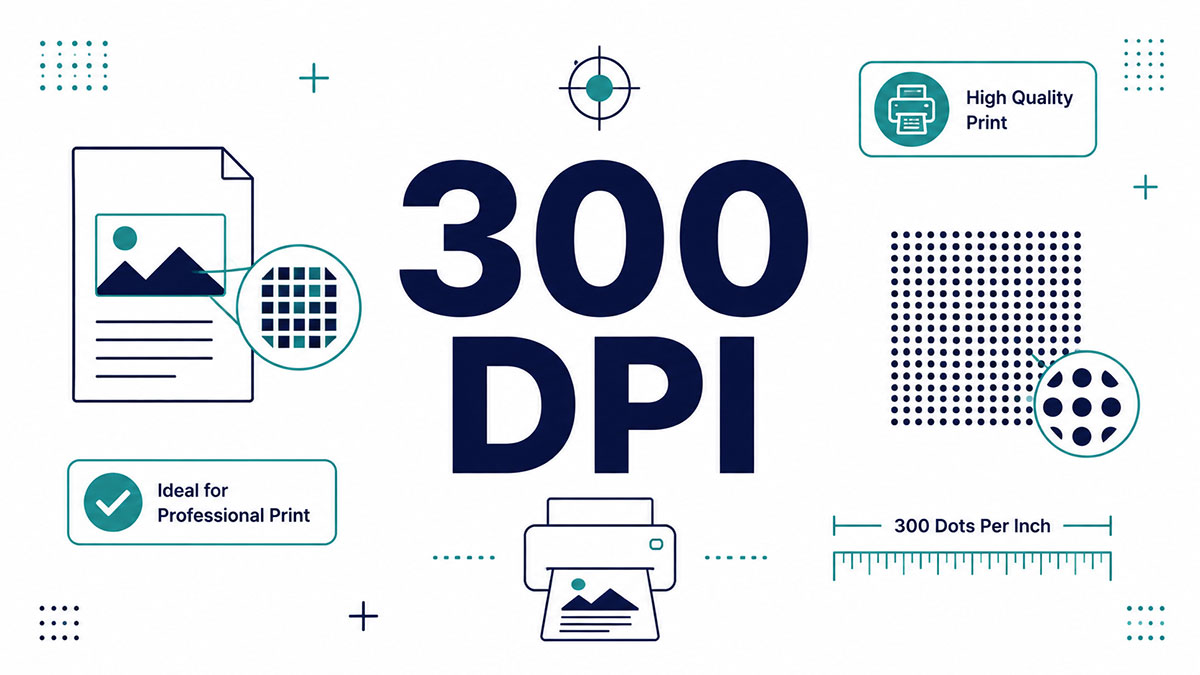
Your design looked flawless on screen. Then the print shop sent it back: low resolution, needs 300 DPI.
That rejection trips up a lot of people, and the fix starts with knowing what 300 DPI actually means and why print quality depends on it.
DPI stands for dots per inch, the density of ink a printer lays on paper. It’s the industry standard behind sharp photos, flyers, brochures, and business cards.
This guide covers the essentials without the jargon:
- The real difference between DPI and PPI
- How to calculate print size and pixels needed
- Setting 300 DPI in Photoshop, and why upscaling a low-res file rarely works
By the end, you’ll prep print-ready files with confidence.
What Is 300 DPI?
300 DPI means 300 dots of ink placed per linear inch of printed material. DPI stands for dots per inch. It measures how densely a printer lays ink onto paper, not how big a file is. At 300 dots per inch, print looks sharp enough that the eye stops seeing individual dots.
The number describes physical output. A printer drops 300 dots across every inch, horizontally and vertically.
Printing for Less recommends 300 DPI as the baseline for crisp results, with anything lower coming out fuzzy or jagged.
Three things define the term:
- Dots: tiny ink drops the printer places on the sheet
- Per inch: counted across one linear inch, not a square inch
- 300: the density most commercial presses treat as standard
VistaPrint lists 300 DPI as the standard resolution for postcards, flyers, business cards, brochures, posters, books, and magazines. One number covers most of what gets printed.
What Is the Difference Between DPI and PPI?
PPI measures pixel density in a digital file. DPI measures ink dots on paper. A file stores pixels per inch. A printer outputs dots per inch. People swap the terms constantly, but they describe two different stages of the same job.
| Term | Measures | Set By |
|---|---|---|
| PPI (Pixels Per Inch) | Pixels in a digital image | Camera, Photoshop, GIMP, and other image editing software |
| DPI (Dots Per Inch) | Ink dots on printed paper | Physical printer and printing process |
Printivity puts it plainly: PPI is the measure of resolution for a digital image, and DPI is the measurement for print output.
Screens have no true DPI. A monitor displays pixels, so screen density is always PPI. If you want the deeper breakdown, the full comparison between DPI and PPI walks through where each one applies.
When People Say DPI but Mean PPI
Everyday use collapses both into “DPI.” Nobody in a print shop corrects you.
Print shops ask for “300 DPI files.” What they technically need is 300 PPI image data, since one pixel maps to one dot when the file hits the press.
VistaPrint notes one pixel corresponds to one dot of printed ink, which is why the two numbers get treated as the same thing in real workflows.
Why Is 300 DPI the Standard for Print?
At normal reading distance, the human eye stops resolving detail past roughly 300 dots per inch. Push higher and most people see no difference. That physical limit, plus how offset presses reproduce detail, is why 300 became the number.
The eye’s angular resolution sits around 1 arcminute. Arthur’s resolution breakdown puts that at about 300 dpi for material viewed from one foot, which is exactly why magazines print at 300.
Two forces set the standard:
Eye acuity: at 10 to 12 inches, 300 dots per inch is the threshold where dots vanish into a smooth image.
Press physics: commercial offset printing uses a 150 lines-per-inch halftone screen, and the rule of thumb is 2x that ruling, landing on 300 DPI (PrintNinja).
Going higher wastes file size. Printivity states there is no point designing above 300 PPI for print, since the eye can’t tell and the file just bloats.
How Do You Calculate Print Size at 300 DPI?
Pixels divided by 300 equals inches printed. Run it backward for the pixels you need: inches multiplied by 300.
A 3,000-pixel-wide image at 300 DPI prints at exactly 10 inches (DesignYourWay). Shrink the print and resolution climbs. Enlarge it and resolution drops.
Printing for Less shows the tension directly: a 2×2 inch image at 300 DPI enlarged to 4×4 inches drops to 150 DPI, which crosses into unacceptable territory.
Pixel Requirements for Common Print Sizes
Standard sizes and the pixels each needs at 300 DPI:
| Print Size | Pixels Needed |
|---|---|
| 4 × 6 photo | 1,200 × 1,800 pixels |
| 8 × 10 print | 2,400 × 3,000 pixels |
| A4 document | 2,480 × 3,508 pixels |
| US Letter flyer | 2,550 × 3,300 pixels |
Numbers sourced from DesignYourWay’s print resolution reference. Files with bleed need extra pixels on every edge, roughly 75 more per side on an A4 at 300 DPI.
What Does 300 DPI Look Like Compared to 72 DPI?
Same pixels, different result on paper. A 72 DPI image looks fine on a monitor and turns into a blurry mess in print.
72 DPI traces back to early screen density and became the web default. Screens show pixels directly, so 72 works on a display. It never works on a press.
Mixam, a commercial printer, enforces a hard minimum of 100 DPI and won’t print anything below it. Web images at 72 DPI simply don’t hold up.
The gap catches people off guard:
- A 1080p screenshot fills a 27-inch monitor
- That same file at 300 DPI prints at only 6.4 x 3.6 inches (DesignYourWay)
Want the full picture on each end? There’s a dedicated breakdown of what 72 DPI actually is and where it still makes sense.
Can You Increase a Low-Resolution Image to 300 DPI?
Not really. Changing the DPI field on a low-pixel image does not add real detail. Upscaling software invents pixels through interpolation, and even good AI upscalers can’t recover data the camera never captured.
Printing for Less is blunt about upsampling: adding pixels to a low-res file creates blurry images and ugly blocks of color, not sharpness.
Mixam found the same in production. Manually bumping the DPI setting in Photoshop just makes existing pixels bigger, it doesn’t create new detail.
Real fixes:
- Recapture: scan or shoot at higher resolution from the start
- Redesign: rebuild the file at 300 PPI (Printivity’s recommended path)
- AI upscaling: tools like Topaz Gigapixel AI improve results but can’t fabricate lost data
When Printify added AI image enhancement, they found 15% of merchant uploads, about one in seven, arrived below the quality threshold and needed fixing before print.
Why Changing the DPI Number Alone Does Nothing
DPI is metadata until it’s paired with enough pixels.
Setting a 72 file to 300 without resampling shrinks the print size. It doesn’t sharpen a single edge. The pixel count stays exactly the same.
How Do You Check the DPI of an Image?
The resolution value lives in the file’s metadata and every editor surfaces it in a different spot. Four reliable ways to read it:
Adobe Photoshop: Image > Image Size shows resolution in pixels per inch.
Windows: right-click the file, Properties, Details tab lists horizontal and vertical resolution.
macOS Preview: Tools > Adjust Size displays the current resolution.
EXIF viewers: read the tagged value straight from JPEG and TIFF metadata.
All American Printing points to Photoshop or GIMP as the standard tools for opening an image and adjusting DPI manually before a job goes out.
How Do You Set an Image to 300 DPI?
The reliable method takes one checkbox and one number. Open Image Size, turn off Resample, type 300 in the resolution field.
Uncheck Resample first. That single step is what separates a clean retag from a botched enlargement.
With Resample off, Photoshop leaves the pixels untouched and only updates how tightly they print (MyImageUpscaler). The file gets smaller on paper, not softer.
The New York Public Library digitizes materials between 300ppi and 1200ppi, and its fix for a 72ppi file is exactly this: uncheck Resample, change resolution to 300, and neither the pixel dimensions nor the file size shift.
Steps that hold up:
- Image > Image Size in Photoshop or GIMP
- Uncheck Resample
- Enter 300 in Resolution
- Save As TIFF or high-quality JPEG to keep the tag intact
Leave Resample checked only when you accept interpolation to hit a target size. Indiana University’s training notes flag that resampling throws away or invents pixels, which is fine for shrinking a web image and risky for print.
Which File Formats Hold 300 DPI Best?
Format choice decides whether your 300 DPI survives to the press. Some formats carry the resolution tag and full pixel data. Others drop one or the other.
| Format | Holds DPI Tag | Best For |
|---|---|---|
| TIFF | Yes, lossless | Print shops, high-quality photos |
| JPEG | Yes, compressed | General printing and smaller file sizes |
| PNG | Unreliable | Web graphics, screenshots, and line art |
| PDF / EPS / SVG | Not needed | Logos, illustrations, and vector artwork |
TIFF stores uncompressed pixel data and the resolution tag, which is why Poster Print Shop names it the top pick for high-detail print alongside PDF.
JPEG works at high quality settings, though compression artifacts creep into fine detail. PNG holds sharp edges but carries no dependable DPI metadata for print.
If you want the fuller technical split between the two raster formats, there’s a breakdown of the difference between SVG and PNG worth a look.
Why Vectors Ignore DPI
Vector art stores math paths, not a fixed pixel grid.
Logos and type stay crisp at any size because the printer’s RIP renders the paths at its own native resolution (Logotouse). A 200-pixel PNG logo pixelates on a business card. The same logo as an SVG file prints pin-sharp on an 8-foot banner with zero extra work.
When Do You Actually Need 300 DPI?
Anything held at reading distance needs 300 DPI. Print viewed from across a room does not. The rule tracks one variable: how far the viewer stands.
Nicole Steffen Design puts the close-viewing threshold plainly: at 10 to 14 inches, 300 dots per inch produces smooth curves and sharp text, and below that, softness shows.
Needs 300 DPI:
- Business cards, brochures, flyers, postcards
- Photo prints and packaging
- Books and magazines
Web and screen use needs pixel dimensions, not a DPI tag. A web image labeled 300 DPI displays identically to one labeled 72 if the pixel count matches (MyImageUpscaler).
Fine art giclée sits at the high end. LetsEnhance notes true giclée requires a minimum 300 DPI source file, pigment inks, and archival paper, printed on machines running 1,440 to 2,880 DPI.
Print Distance Changes the DPI You Need
Required DPI drops as viewing distance grows. The maximum resolution a viewer can resolve equals 6,878 divided by viewing distance in inches (LetsEnhance).
| Format | Viewing Distance | DPI |
|---|---|---|
| Handheld print | 10–14 inches | 300 |
| Trade show banner | 3–8 feet | 100–150 |
| Billboard | 50+ feet | 20–50 |
Design One Printing prints 10×20 banners at 75 DPI daily and confirms they look sharp from 15 to 25 feet. A 300 DPI billboard file would run into gigabytes for zero visible gain.
FAQ on 300 DPI
What does 300 DPI mean?
300 DPI means 300 dots of ink per linear inch of printed material. It’s the density most commercial presses treat as standard, sharp enough that the human eye stops seeing individual dots at normal reading distance.
Is 300 DPI the same as 300 PPI?
Not technically. PPI measures pixels in a digital file. DPI measures ink dots on paper. People swap the terms constantly, and since one pixel maps to one dot at print time, the numbers line up in practice.
How many pixels is 300 DPI?
It depends on print size. Multiply inches by 300. A 4×6 photo needs 1,200 x 1,800 pixels. An 8×10 needs 2,400 x 3,000. An A4 document needs 2,480 x 3,508.
Can I convert a 72 DPI image to 300 DPI?
Changing the number alone won’t add detail. Upscaling software invents pixels through interpolation, and even AI tools like Topaz Gigapixel can’t recover data the camera never captured. Recapturing at high resolution is the reliable fix.
How do I check if an image is 300 DPI?
In Photoshop, open Image > Image Size. On Windows, right-click, Properties, Details tab. On Mac, use Preview’s Adjust Size. Each shows the tagged resolution stored in the file’s metadata.
How do I set an image to 300 DPI in Photoshop?
Open Image Size and uncheck Resample first. Type 300 in the resolution field. This retags the file without touching the pixels, then save as TIFF or high-quality JPEG.
Does 300 DPI matter for web images?
No. Screens display pixels directly, so only pixel dimensions matter online. A web image labeled 300 DPI looks identical to one labeled 72 when both share the same pixel count.
Why is 300 DPI the print standard?
Two reasons. The eye can’t resolve detail past roughly 300 dots per inch at reading distance, and commercial offset presses use a 150 lines-per-inch halftone screen, which needs 2x that in resolution.
Do billboards need 300 DPI?
No. Viewing distance changes everything. A billboard seen from 50 feet away prints fine at 20 to 50 DPI. A 300 DPI billboard file would run into gigabytes for zero visible benefit.
Is higher than 300 DPI better?
Rarely. Beyond 300 DPI, most people see no difference at normal viewing distance, and the file just bloats. Fine art giclée prints sometimes push higher for close inspection, but standard print gains nothing.
Conclusion
Knowing what 300 DPI is comes down to one idea: dots per inch decides how sharp ink lands on paper.
The number holds because the human eye can’t separate individual dots past that density at reading distance, and offset presses are built around it.
Match your pixel dimensions to the print size, and the math takes care of the rest. A 3,000-pixel image prints clean at 10 inches.
Remember what won’t work. Bumping a low-resolution image up in Photoshop stretches pixels, it doesn’t add detail.
And the standard bends with distance. Handheld print wants 300, while a billboard runs fine at 20 to 50.
Get the resolution right at the source, and your print-ready files stop bouncing back.

Many of his resources are available on various design marketplaces. Over the years, he's worked with a range of clients and contributed to design publications like Designmodo, WebDesignerDepot, and Speckyboy, Slider Revolution among others.
- What is Backend in Web Development? - September 13, 2026
- What is Frontend Development? - September 11, 2026
- How to Make a Button in Figma: Design Best Practices - September 10, 2026

