How you hyperlink in Figma depends on the layer. Text takes a link directly. Images and vectors don’t, so they need a prototype interaction instead. For text, select the characters, press Shift+Command+U on Mac or Shift+Control+U on Windows, paste the URL and hit Enter.
A text link can point to an external site, another frame, a page or a different file. Prototype viewers get sent to a website through an Open link hotspot.
Older tutorials still say Command+K or Control+K. The Figma Help Center lists the Shift combination as of October 2026, and Figma staff said in July 2024 that Command+K now opens the actions menu. That same page says the editor can’t link images or vector objects at all, only prototype hotspots.
How to add a hyperlink to text in Figma
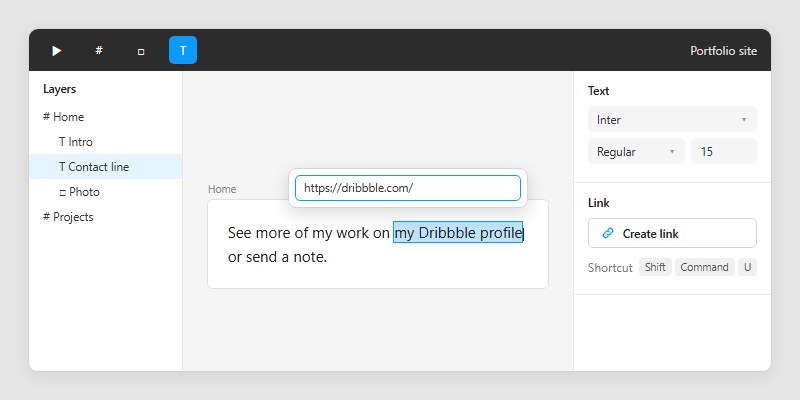
Select the text layer, press Enter, highlight the characters you want linked, press Shift+Command+U (Mac) or Shift+Control+U (Windows), paste the URL and hit Enter. That’s the whole job for a text link.
The link can cover a full text layer or only a selection inside it, and anyone with edit access to the file can create one (Figma Help Center, as of October 2026).
All of this happens in text edit mode, so the same basics as editing text in Figma apply.
- Select the text layer and press Enter to enter edit mode.
- Select the characters to link, or the whole text.
- Open the link box with the Create link button or the shortcut.
- Type or paste the URL in the box above the selection.
- Press Enter to apply it.
From the Properties panel
While the selection is active, a Create link button shows up in the Properties panel. Clicking it opens the URL box right above the selected characters.
Slower than the shortcut. Still the better pick the first few times, because the button is visible and the key combination isn’t.
With the keyboard shortcut
| Action | Mac | Windows |
|---|---|---|
| Open the link box | Shift+Command+U | Shift+Control+U |
| Paste a URL as plain text, no link | Command+Shift+V | Control+Shift+V |
Plenty of older tutorials contradict this table. Alphr’s guide gives Command+K and Control+K, and an older copy of Figma’s own help text, mirrored in Anima’s prototyping guide, says the same thing.
The Help Center page lists the Shift combination as of October 2026, so go with that. A Figma staff reply on the Community Forum in July 2024 explains why: Command+K now opens actions, and Create link moved to Shift+Command+U. In the redesigned interface, expect Command+K to open the actions menu and not the link box. If you set up links a lot, the wider list of Figma keyboard shortcuts is worth skimming.
By pasting in place
- Select the text and paste with Command+V or Control+V, and the selection becomes the link.
- Want the URL visible as well? Paste twice. The first paste drops the URL in as text and the second turns it into a link.
- For a plain URL with no link attached, use the Shift variant from the table above.
Pasting is the quickest route when the URL is already on the clipboard, which it usually is right after copying a frame link.
Linking buttons, images and shapes with the Open link action
Figma’s editor can’t attach a link to an image or a vector object, so those layers take a prototype interaction. The action is called Open link, and it sends the viewer to a URL outside the prototype.
- Switch to the Prototype tab in the right sidebar.
- Select the layer to use as the hotspot (a button, an icon, an image, a shape).
- Click the plus in the Interactions section.
- Keep the trigger on On click.
- Set the action to Open link.
- Paste the URL into the field that appears.
- Click Present or use the inline preview, then click the hotspot to test it.
Interactions live in the Prototype tab, and the mechanics of prototyping in Figma go deeper than this section does.
If the button doesn’t exist yet, build it first. A separate walkthrough covers making a button in Figma.
An Open link hotspot opens the URL in a new tab. External sites bring up a leaving-Figma page the first time, though a checkbox skips it, and that choice is saved only on the current device (Figma Prototype actions documentation). The whole hotspot is clickable too, which is different from a text link, since a text link only covers the characters it was applied to.
Figma’s beginner course attaches the interaction to the main component of a navigation button, so it doesn’t have to be repeated whenever a new page appears.
Which link do you copy for a frame, a page or a prototype?
Match the link to where the viewer should land. A frame link goes to one screen, a page link to a whole page, the Share Prototype link opens prototype view, and the Share link opens the file itself. Any of them can be pasted onto a text layer as a link.
How to copy each one
- For the file, open it, click Share, set the link permissions and click Copy link.
- For a prototype, click Present, then Share Prototype, set permissions and click Copy link.
- Page links come from the Layers panel. Expand the page list, right-click the page name and choose Copy link to page.
- Right-click a frame, pick Copy/Paste as, then Copy link.
In the browser, the address bar also holds a link to the selected object (Figma Help Center).
Handing a prototype link to someone without an account has its own permission steps, covered in a guide to sharing a Figma prototype without an account.
What happens when someone clicks it
A page or frame link in the same file jumps there in place. Links to other files, prototypes, pages or frames elsewhere open in a new tab.
That in-file behavior is why text links work well for navigation inside a large file. A longer walkthrough of linking pages in Figma covers the full flow.
When a copied link opens the wrong thing
A March 2025 report on the Figma Community Forum describes a page link that opened the design file instead of the prototype. The poster noticed that page and frame links carry a /design URL while prototypes use /proto.
A June 2025 thread covered Copy link inside a prototype returning a /design URL and landing on the file cover. Figma confirmed the bug was resolved and suggested refreshing the tab.
Figma community support also stated in February 2025 that a prototype interaction cannot connect directly to another page. That leaves a text link, or an Open link action that points at a copied URL.
If the viewer should see the prototype, copy the link from Share Prototype and not from a page or frame.
Text link or Open link action: which one fits?
Words get a text link, and everything else gets an Open link interaction. Page navigation inside a file goes to a text link too, because interactions can’t connect straight to a page.
| Method | Works on | Where it responds | Tab behavior |
|---|---|---|---|
| Text link | Characters in a text layer | Canvas and prototypes | External: new tab. Same-file page or frame: in place |
| Open link action | Any hotspot: button, image, shape | Prototype view | New tab, leaving notice for external sites |
| Copied Figma URL on text | Characters in a text layer | Canvas and prototypes | In place within the file, new tab for other files |
Icons, images and shapes only take Open link, so there’s no choice to make there. Text that should behave like a real link belongs with a text link, which represents the links that will exist in production (Figma Help Center). And for another page in the same file, use a text link with a copied page URL.
Same-tab behavior is where the sources split. Figma’s Prototype actions page says an Open link hotspot opens a new tab and documents a checkbox only for skipping the leaving-Figma page.
Community Forum answers from 2024 refer to an Open in new tab checkbox under Open link, including one from Figma community support in August 2024, and one user reports unchecking it in May 2024 to stay in the same tab. Check the Interaction details panel in your own build before promising a client same-tab behavior.
Following, editing and removing links
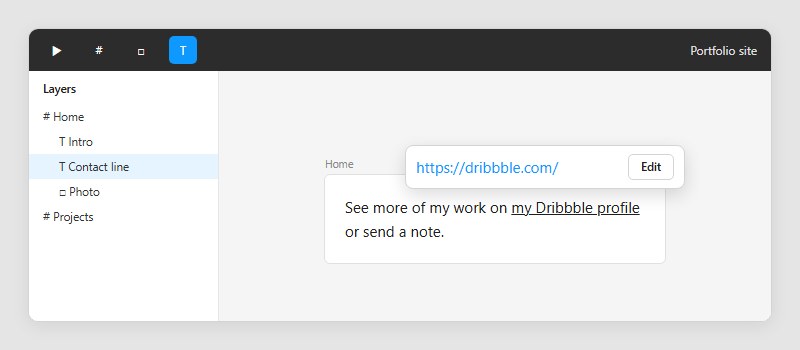
Hover a linked text layer to see its URL, click to follow it, and use the Edit button in the link box to change or clear it. Text links respond right on the canvas.
Hold Command or Control while clicking if you don’t want the link to open (Figma Help Center, as of October 2026). In text edit mode, hover the linked text and click the URL in the link modal to follow it.
Open link hotspots get tested differently. Click the Preview icon next to the flow’s starting point in the Prototype tab, and the inline preview floats over the canvas and updates as the design changes.
To edit or delete a text link, work through these steps.
- Double-click the linked text to enter text edit mode.
- Hover or click the linked text to open the link modal.
- Click Edit.
- Change the URL, or delete it to remove the link.
If the Edit button is missing, the layer is locked. Unlock it and try again.
Linked text is underlined by default and styles like any other text. Command+U or Control+U removes the underline.
Why is my Figma link not working?
Start with the viewer’s access level and the URL scheme. If both look fine, the display context is next, meaning whether the file is shown inside Figma or in an embed. Most failures sit in one of those places.
Access level
Creating and editing links requires edit access to the file, while users with view access can only follow them (Figma Help Center).
When a collaborator says the link box never appears, check whether they hold view or edit access before touching the file.
mailto: addresses
The Help Center says linking to a default email client with mailto: is not supported for text links. Figma’s beginner course, though, opens a mailto: link from an Open link hotspot on a contact button.
Both statements can hold if the limit applies to text links only. For an email address, build a button-style hotspot and test it in the preview instead of trusting a text link.
Embeds
Repeated forum reports from January 2024 to March 2026 say external links work in the Figma prototype but do nothing once the prototype is embedded on Behance. A FigJam embed report from August 2024 showed the reverse. External links worked there, and links to other nodes in the file did not.
Figma community support asked posters for the embed URL format and more details in those threads. The retrieved threads show no published fix.
The two reports point in opposite directions, so test the final embed on the real host before sending a portfolio to recruiters. Keep the direct prototype link around as a fallback.
Links on components
A June 2023 forum report claimed prototype links on components had stopped working in every file. A Figma technical quality specialist tested it and found component links working, and the thread was marked solved on that answer.
Hyperlinks in FigJam and Figma Slides
FigJam takes links the same way Figma Design does, with the same shortcut and paste behavior. Figma Slides supports text links too, but what’s known about them while presenting comes from user reports, not documentation.
FigJam
- Select an object or a string of text.
- Click the link icon, or press Shift+Command+U (Mac) or Shift+Control+U (Windows).
- Enter or paste the URL.
With the URL already on the clipboard, select the text and press Command+V or Control+V.
Pasting onto an empty board is a different feature. FigJam turns pasted links from YouTube, Vimeo, Loom and similar sites into link previews, interactive where the site supports embeds (Figma Help Center).
Figma Slides
One February 2025 forum report tested links across presenting modes. The results split on Present and Notes.
| Where you present | URL link | Slide link |
|---|---|---|
| Edit mode | Works | Works |
| Browser presenter | Works | Works |
| Present mode | Works | Works |
| Present and Notes | Only from the Notes panel | Does not work, the target slide flashes briefly |
If you present with speaker notes, click the link from the Notes panel or present from the browser instead.
Slides links attach to text only, and only the characters respond, not the text bounding box (forum report, May 2025). One user’s workaround from August 2024 is a transparent text layer with a link, placed over the object.
A September 2024 report describes a set of auto layout text buttons that all opened the first link in presentation mode, while the editor showed the correct URLs. Run every linked slide in presentation mode before the meeting.
For decks that go in front of clients, a guide to using Figma for client presentations covers the wider workflow.
Hyperlinks in Figma FAQ
Do hyperlinks work on the free Figma plan?
Yes. The Figma Help Center lists text links and prototype actions as available on any plan.
Nothing needs unlocking, so a free account can use the Open link action the same way a paid seat does.
Can one button open a link and go to another frame at the same time?
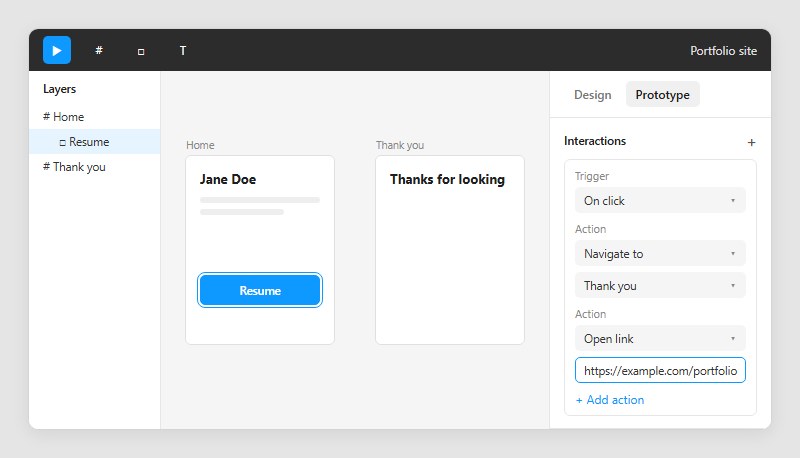
Yes. Give the button an On click trigger, then use Add action so it carries a second action. Set Navigate to for the frame and Open link for the URL.
Figma community support confirmed this approach in September 2023.
Can a Figma button trigger a file download?
No. Figma has no download action, and community support said so in September 2023.
The closest option is an Open link pointing at the hosted file’s URL, which leaves the download decision to the viewer’s browser.
How do you link to a section further down the same page?
Use the Scroll to action, which replicates anchor links by scrolling a prototype or a nested scrollable container to an object (Figma Prototype actions documentation).
Choosing the target from the Interactions panel only lists direct children of scrollable frames. To reach any other object in the top-level frame, drag a noodle to it.
Checking Hyperlinks in Figma Before You Share the File
Hyperlinks in Figma need a test in the exact context the recipient will use, because a link that works on the canvas proves nothing about presentation mode or an embed.
Start by clicking each link from the recipient’s access level. After that, click again in presentation mode or the shared prototype, and then once more on the real host, whether that’s an embed or the Present and Notes view. Each pass catches failures that would otherwise hide the next one, and the price is a full click-through per delivery. Tedious, yes. Cheaper than a broken link in front of a client.
The Behance, FigJam embed and Slides Present and Notes reports share one pattern. The URL was correct in the editor and failed only at display time.
Verified October 2026. A Figma release that fixes any of those reports would shorten the last check.
Once every link holds up, the next step is making the file interactive beyond links.

Many of his resources are available on various design marketplaces. Over the years, he's worked with a range of clients and contributed to design publications like Designmodo, WebDesignerDepot, and Speckyboy, Slider Revolution among others.
- How to Hyperlink in Figma (Most Designers Miss This) - November 26, 2026
- How to Export Figma to PNG [Quick Guide] - November 24, 2026
- How to Change Font Size in Figma for Better Design - November 22, 2026